
Records list
From the Workspace, users can access lists of Object records that their permissions allow them to interact with.
Object records are grouped by Object class. Only one Object class can be selected at a time.
The Records list has the same common features as other list pages in Catalyst.
Find out more about List pages.
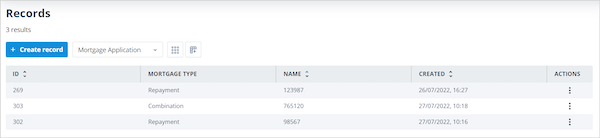
The default Records list is shown below.
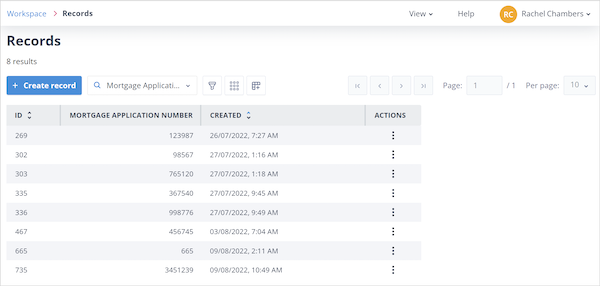
Column headings
The default Records list includes the following columns:
- ALX ID - a unique number given to the Object record when it is created.
- Created - the date and time the Object record was created.
- Actions - contains available actions for the Object record:
- Open - opens the Object record. Depending on your permissions, you may be able to view or edit the record.
- Delete - shown only if you have permission to delete the Object record.
The default view also includes the field selected as the Identifier in the Object class Fields tab.
In the example below, the Identifier is Mortgage Application Number.

If the Identifier field is blank for any Object record, the ALX ID is shown instead.
Useful features
The Records list includes features that help you find, view, and manage Object records.
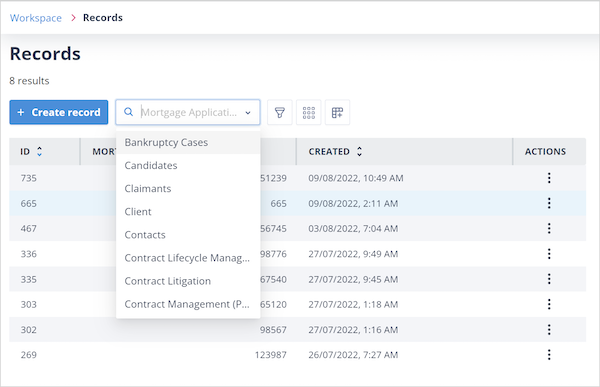
Select an Object class
Use the Object class selector to filter the Records list to records from a specific Object class.
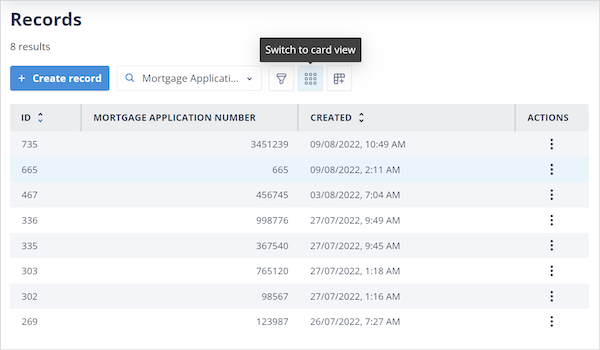
Switch between List View and Card View
Use the view switch icon to move between traditional List View and Card View.
Record views are configured on the Object class.
Find out more about editing Object class display configuration.
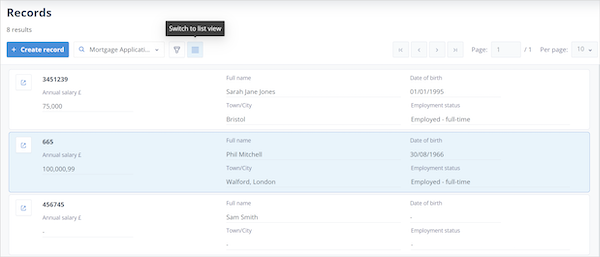
In Card View, each Object record has an Open icon in the top-left corner.
Clicking this icon opens the Object record in Edit View with the side panel open, showing available tabs such as Summary, Tasks, and Record access.
Use the side panel
In List View, the side panel opens when an Object record is selected, provided one or more items are selected in the View menu.
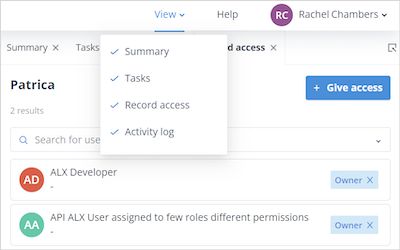
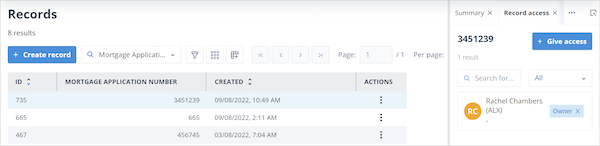
The side panel can include up to four tabs relating to the selected Object record.
Summary tab
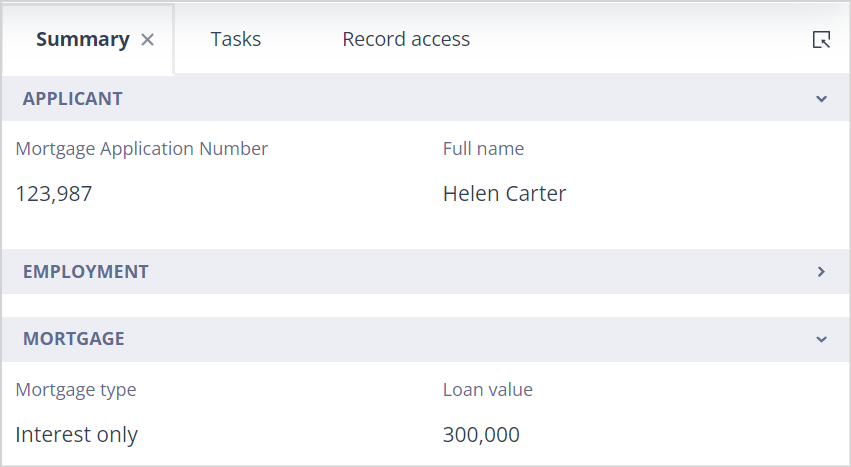
The Summary tab shows the Summary View configured on the Object class.
It is for information only and cannot be edited.
Tasks tab
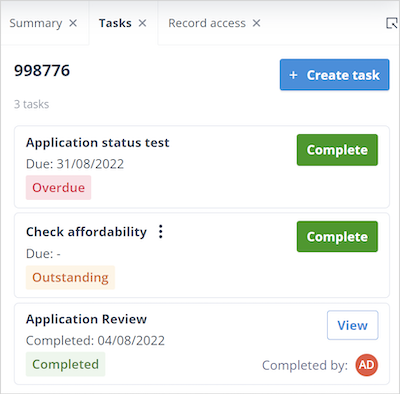
The Tasks tab shows all Tasks associated with the Object record, regardless of how they were created.
Completed tasks show a View button, the completion date, and the avatar of the user who completed the task.
Outstanding or overdue Tasks show a Complete button. If a due date was set in the Task template, it is also displayed.
Activity log tab
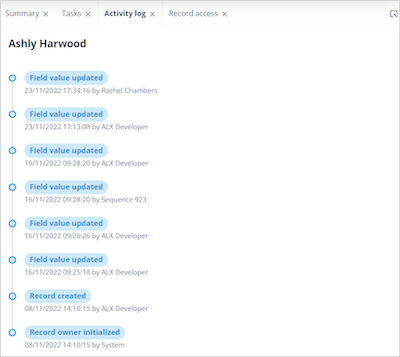
The Activity log tab shows history events directly related to the Object record, such as Owner changes and field value updates.
A user can access the Activity log only if they have View record permission for the selected record.
This tab is hidden from users with an External account type.
Record access tab
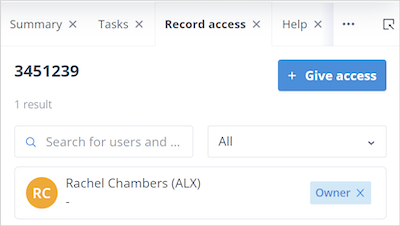
The Record access tab shows Object record Owners and Assignees.
When an Object record is created manually, the user creating it automatically becomes the record Owner.
Users with a Super Admin account type and Object class Owners can access this tab. Other users will not see it.
Configure columns
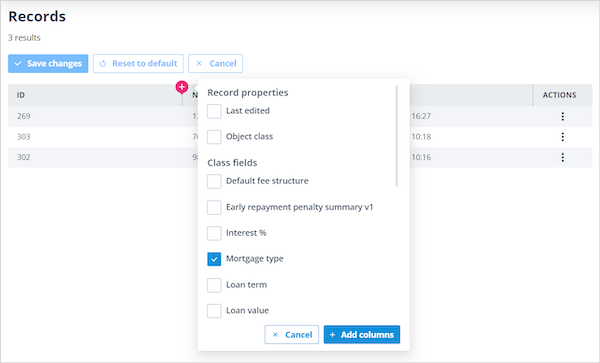
You can select Object class fields in column configuration.
If the selected columns exceed the available main content area, a horizontal scrollbar appears at the bottom of the table.
Long field names or values are truncated.
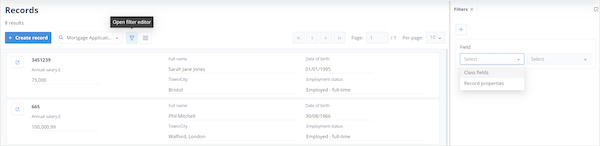
Filter records
The filter editor allows you to filter records by record properties and Object class fields.
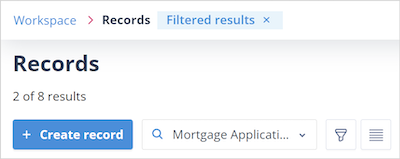
Filtered results are displayed under the list page name as the number of matching results out of the total number of records.
The page navigation also shows the Filtered results control.
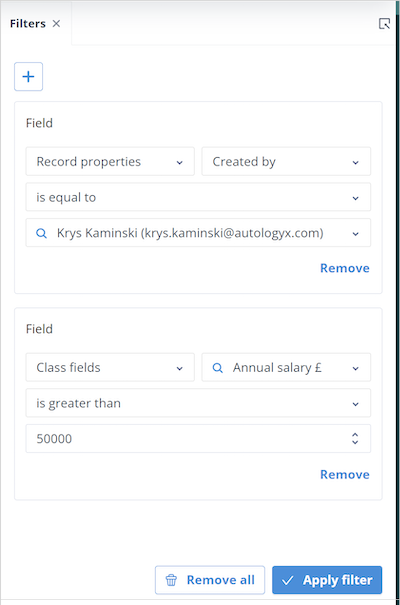
Find out more about the list page filter editor.
Find out more about Editing Object records.
Things to remember
- The maximum number of Object records any Object class in your system can have is 500,000.
- The + Create record button opens the Create and Edit View configured on the Object class.
- Only one Object class can be selected in the Records list at a time.
- The side panel tabs available depend on the Object class configuration and your permissions.
- The Records list supports filtering, column configuration, List View, and Card View.