
Record access - Owners
Each Object record has a Record access tab in the side panel.
This tab can be enabled from the View menu in the top-right corner of the page.
You can access this tab if you are one of the following:
- Owner of the Object class to which the record belongs
- Owner of the record
- A user with a Super admin account type
For more information, see Record access tab.
Assigning an Owner
If a record does not currently have an Owner, you can assign one using the Record Access tab.
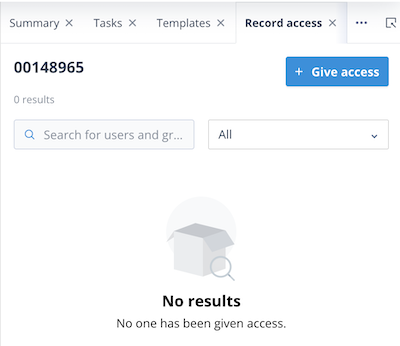
Click the Give access button.
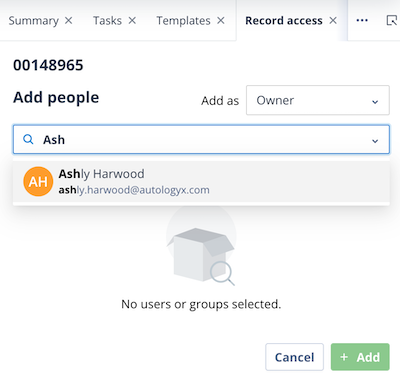
In the Add as dropdown list, select Owner.
Search for the required user or scroll through the list and click their tile to select them.
| Click Give access | Select Owner from the Add as list |
|---|---|
 |  |
A warning message is displayed indicating that only one Owner can be assigned.
Click + Add to continue.
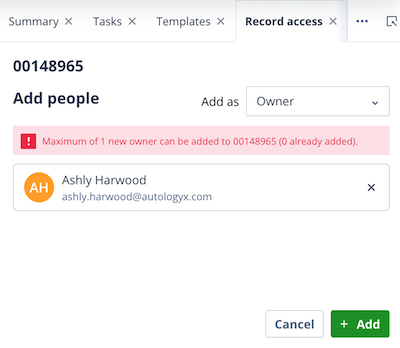
A green success notification is displayed.
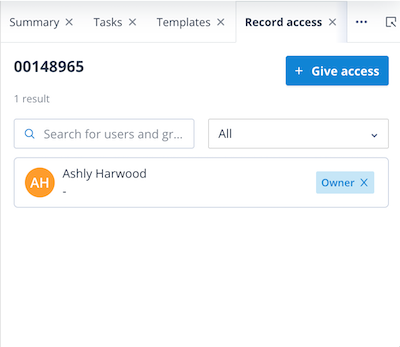
The selected user is shown as the Owner in the Owner/Assignees list and the Owner/Assignees counter is updated.
Things to remember
- A record can have only one Owner.
- Only authorised users can assign or change the Owner of a record.
- Changes to record ownership take effect immediately.