
Tasks list
All users have access to the Tasks menu item in the Workspace left-hand menu.
Depending on their permissions, this list may be empty.
The list can also be empty if the user has applied filters that return no results.
Users who meet one of the following requirements can see tasks in this list:
- have a Super Admin account type
- are an Object class Owner
- have an Object class Permission Set with Tasks > View all enabled as a minimum
- are a Record Owner
- are a task assignee
Default column headers
ID - a unique number that is automatically applied by the system when the task is created for an Object record.
Name - the name given to the task in the Task Template from which it was created.
Status - the current status of the task, which can be Outstanding, Overdue, or Completed.
Actions - depending on permissions and task status, available actions may include View or Complete.
View
The View option appears for completed tasks.
A user can also view incomplete tasks, such as Outstanding or Overdue tasks, when they are not an assignee but have the Tasks > View any tasks permission enabled.
Double-clicking the task in the list also opens it in read-only mode.
When View is clicked, the original task page is shown in the main content area in read-only format. The page opens with a fly-out animation.
Complete
The Complete option appears for incomplete tasks, such as Outstanding or Overdue tasks, when:
- the user is the assignee of the task
- the user is not the assignee but has the Tasks > Complete any tasks permission enabled
When Complete is clicked, the edit task response page opens in the main content area. The page opens with a fly-out animation.
Additional column headers
Completed - displays the date and time the task was completed.
Completed by - displays the name of the user who completed the task.
Template - displays the ID of the Task Template from which the task was created.
Record - displays the ID of the Object record associated with the task.
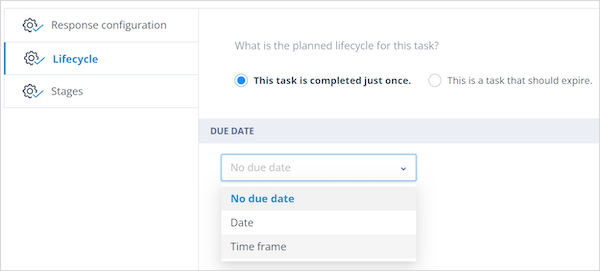
Due Date
Displays the due date calculated from the Due Date configuration in the Task Template Lifecycle settings.
Expiry Date
Displays the date on which the task is due to expire.
This date is configured in the Task Template Lifecycle settings under Expiry rules.
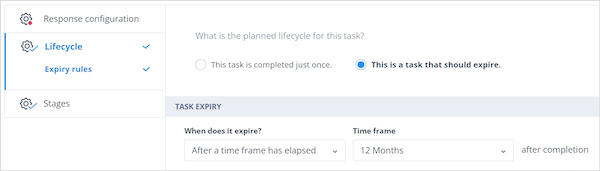
In the example above, the task expires 12 months after it is completed.
List features
The Tasks list includes all standard Catalyst list functionality, including:
- searching
- filtering
- sorting
- column configuration
- pagination
For more information, see List pages.
Things to remember
- The Tasks list only displays tasks that your permissions allow you to see.
- Filters can result in an empty list even when tasks exist.
- Available actions depend on both your permissions and the task status.
- Due Dates and Expiry Dates are configured in the Task Template Lifecycle settings.
- Double-clicking a task opens it directly from the list.