How to create a child record from the parent record
From any parent record, a child record can be created as long as the user has permission to create records in the child object class and to create or edit records in the parent object class.
This is because the create button within the child component will be enabled regardless of whether the parent record has been created. That is, a child record can be created while the parent is itself being created (the parent does not have to be saved before the child can be created) or if the parent record is being edited. The process for creating the child is the same for both.
Example relational model
For the purposes of this article, the relational model being used is shown below:
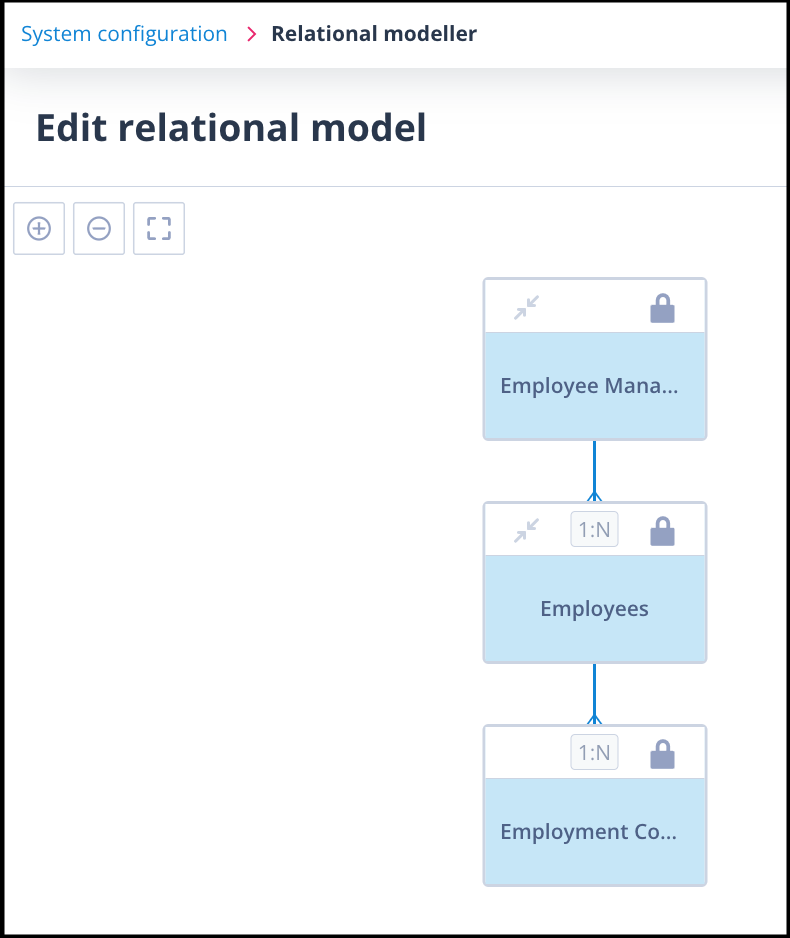
Object class "Employee Management (HR)" is the root parent with one child and one grand-child.
The "Employees" object class is a child of "Employee Management (HR)" and a parent to "Employment Contracts". This means that an Employee record can be created from a record in Employee Management HR and an Employment Contract can be created from a record in Employees.
Example scenario
The following scenario shows how a record can be created in all three object classes at the same time.
Start from the records list
Starting with the Records list filtered to the object class Employee Management (HR), there is currently only one record, ID 1708.
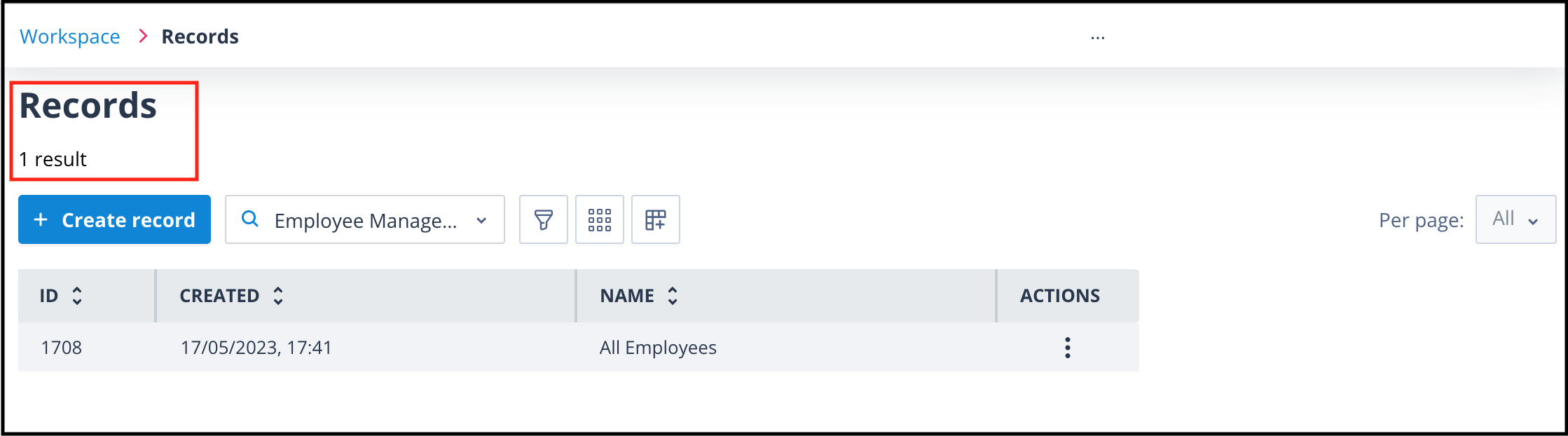
Clicking the + Create record button on this list will allow us to create a new record in the Employee Management (HR) class. The create/edit record display form will open in the main content window.
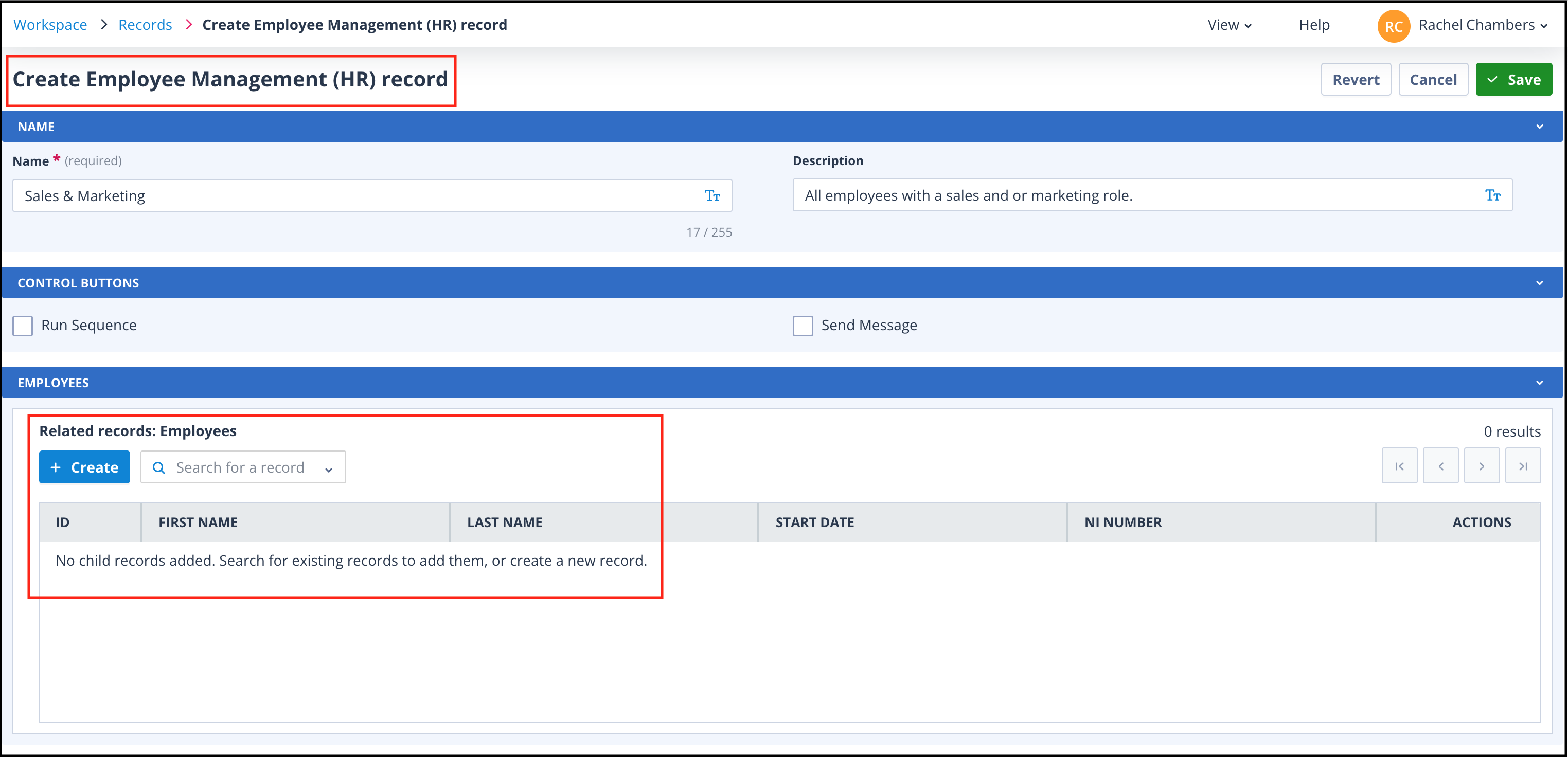
The above screenshot shows that an Employee Management (HR) record is being created and that there are no Employee child records associated with it. The + Create button on the Employee child component is enabled.
Create the child record
Clicking this button will open a fly-out of the create/edit view for the child object class. This is a modal page that does not have its own URL. No tabs will be available in the right-hand side panel whilst creating the record.

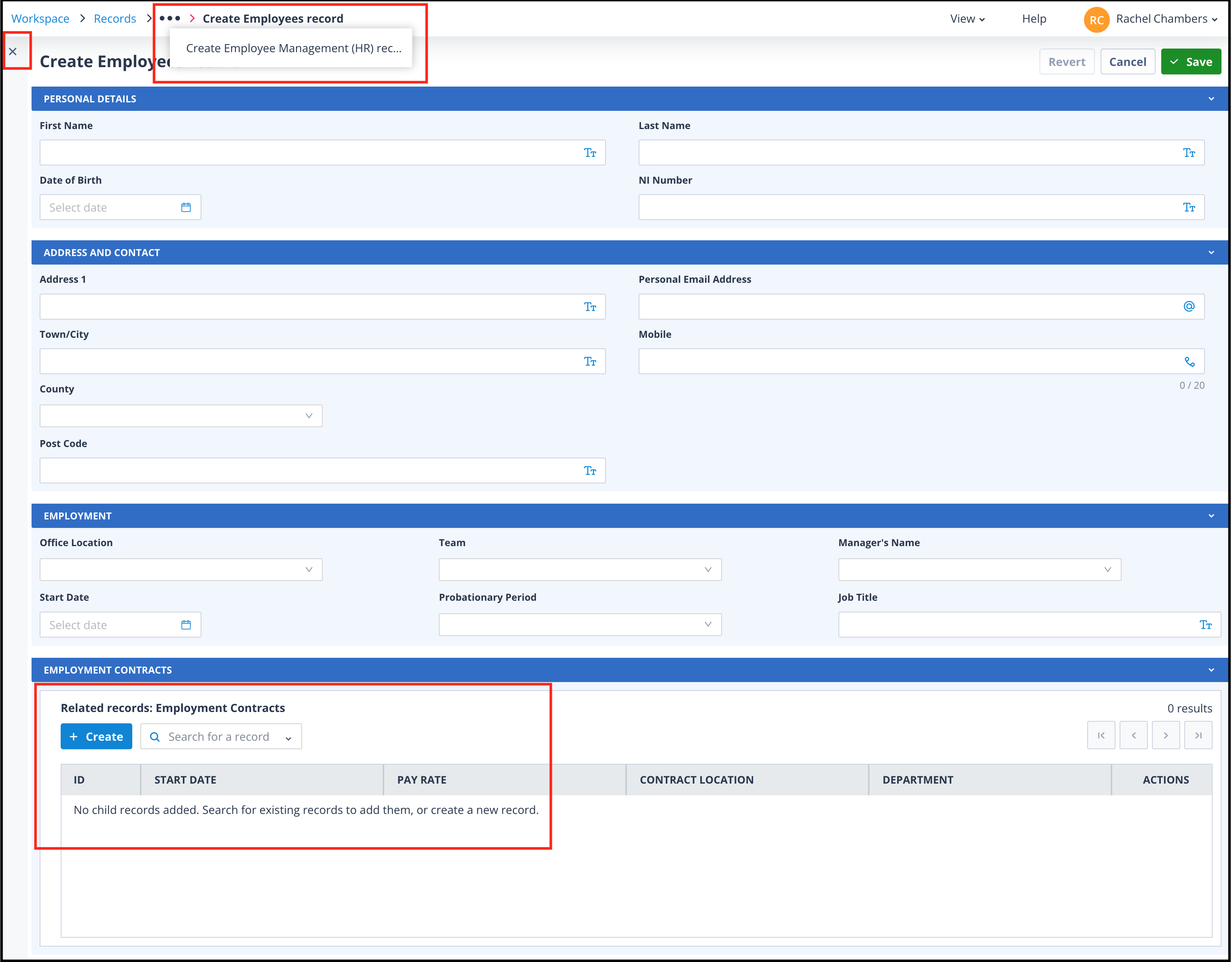
The menu in the breadcrumbs at the top of the modal clearly shows that the current page is creating an Employee record; the text is in bold. We can also see that the parent is in the process of being created.
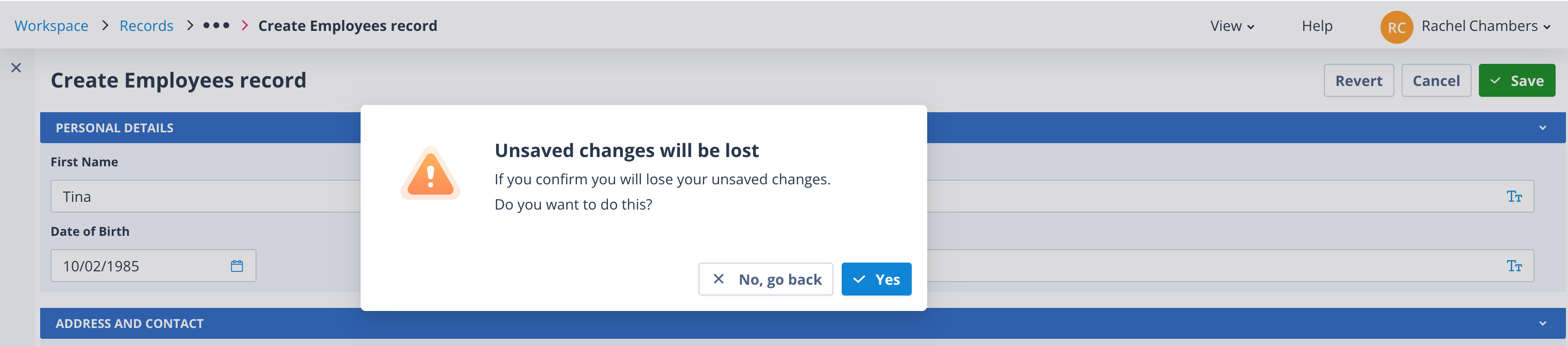
Important: You can return to the parent record from the menu. However, this will close the child record with no warning. Alternatively, if you click the X in the top left hand corner of the child record or the Cancel button in the top right after entering data into the child record, you will see the below "Unsaved changes will be lost" warning.
Create the grandchild record
Clicking the + Create button on the Employment Contracts component will open a fly-out modal so that an Employment Contract record can be created.
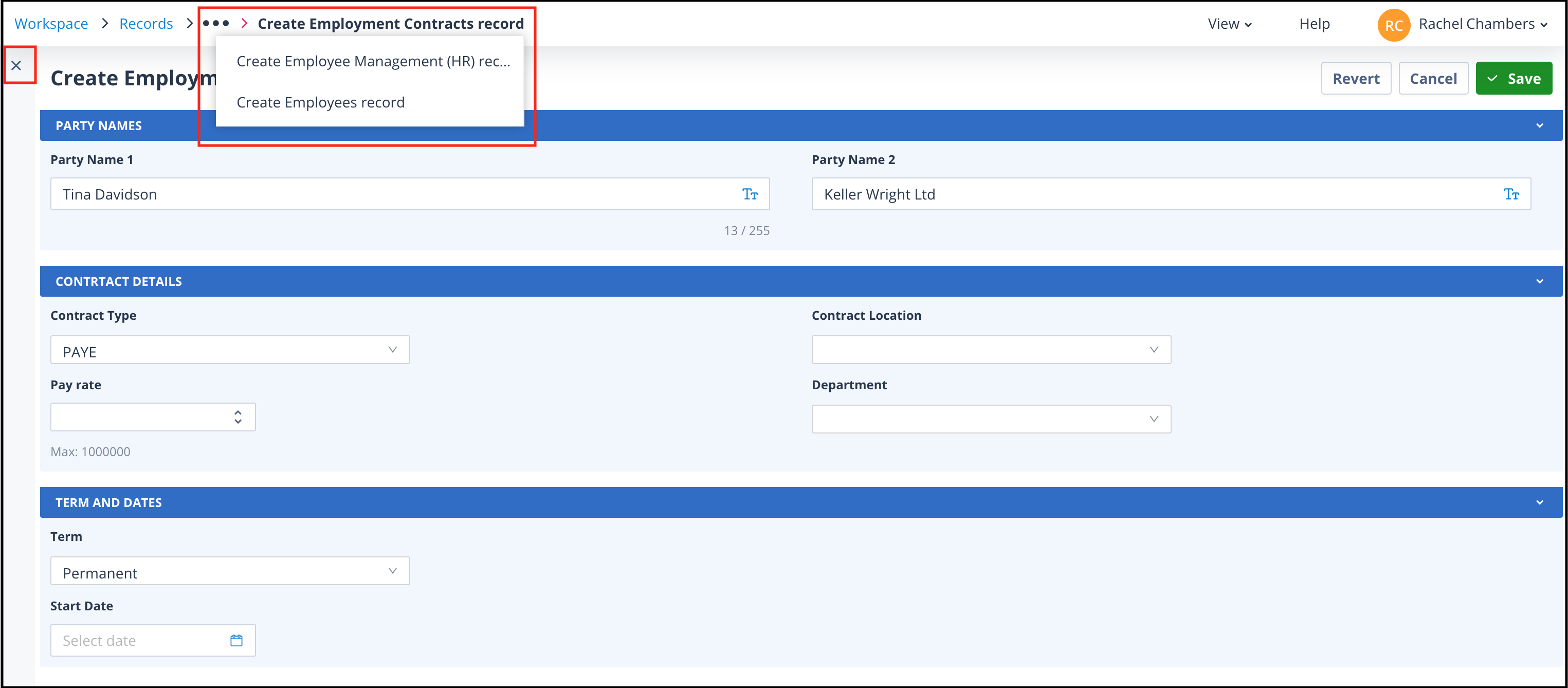
Now the menu shows us that we are in the process of creating three records, each in a different object class.
Having completed the data entry for the Employment Contract, ensuring that all mandatory fields have been populated, click the Save button at the top right of the modal. You will see the green fly-out confirmation that the record has been created.
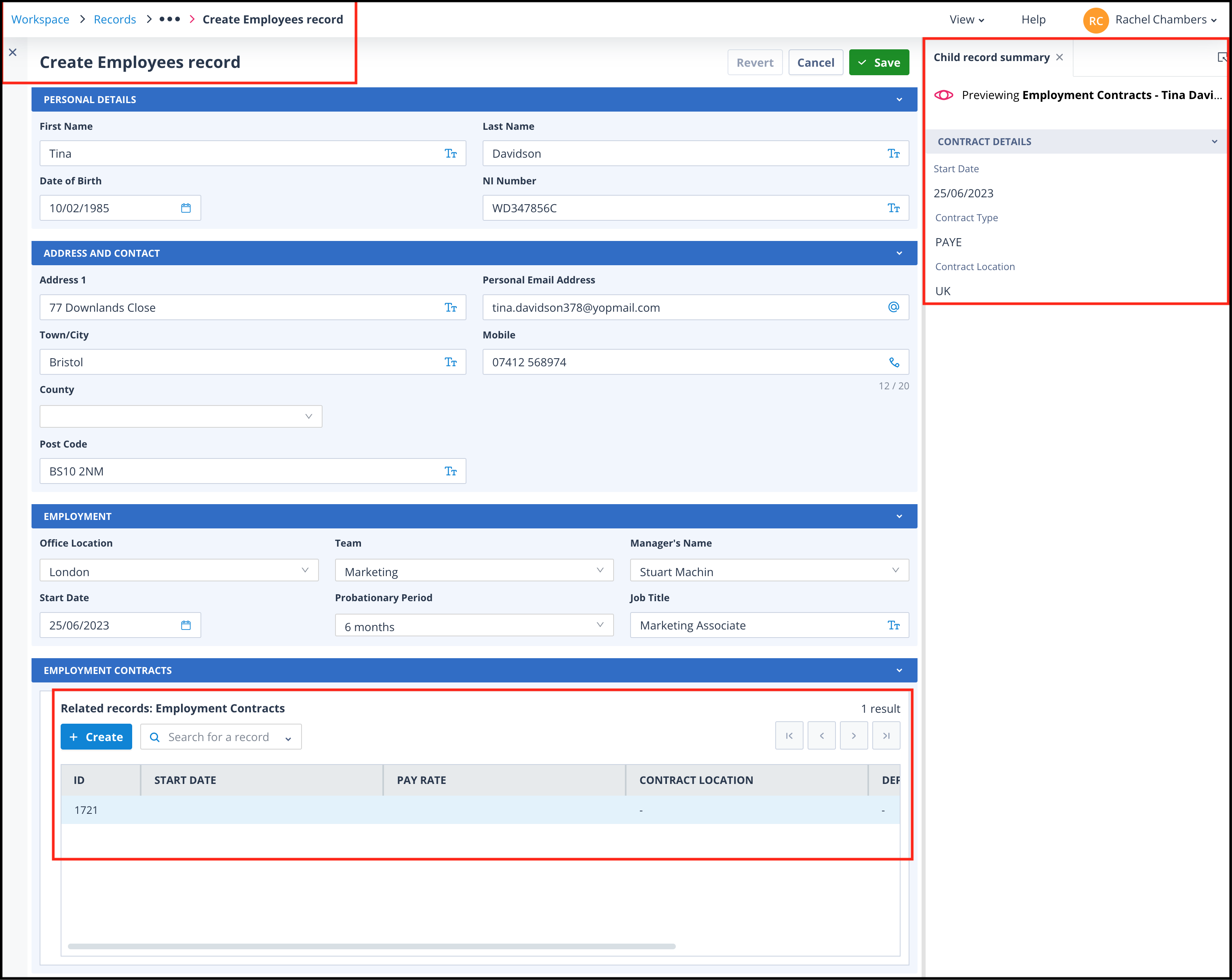
The Employment Contract modal will close and you will have the Create Employees record modal in the main content area. The newly created child will be selected in the Employment Contracts child component and the Child record summary will be displayed in the side panel, if it was selected in the View menu.
Save the child record
Complete the data entry for the Employees record and click Save.
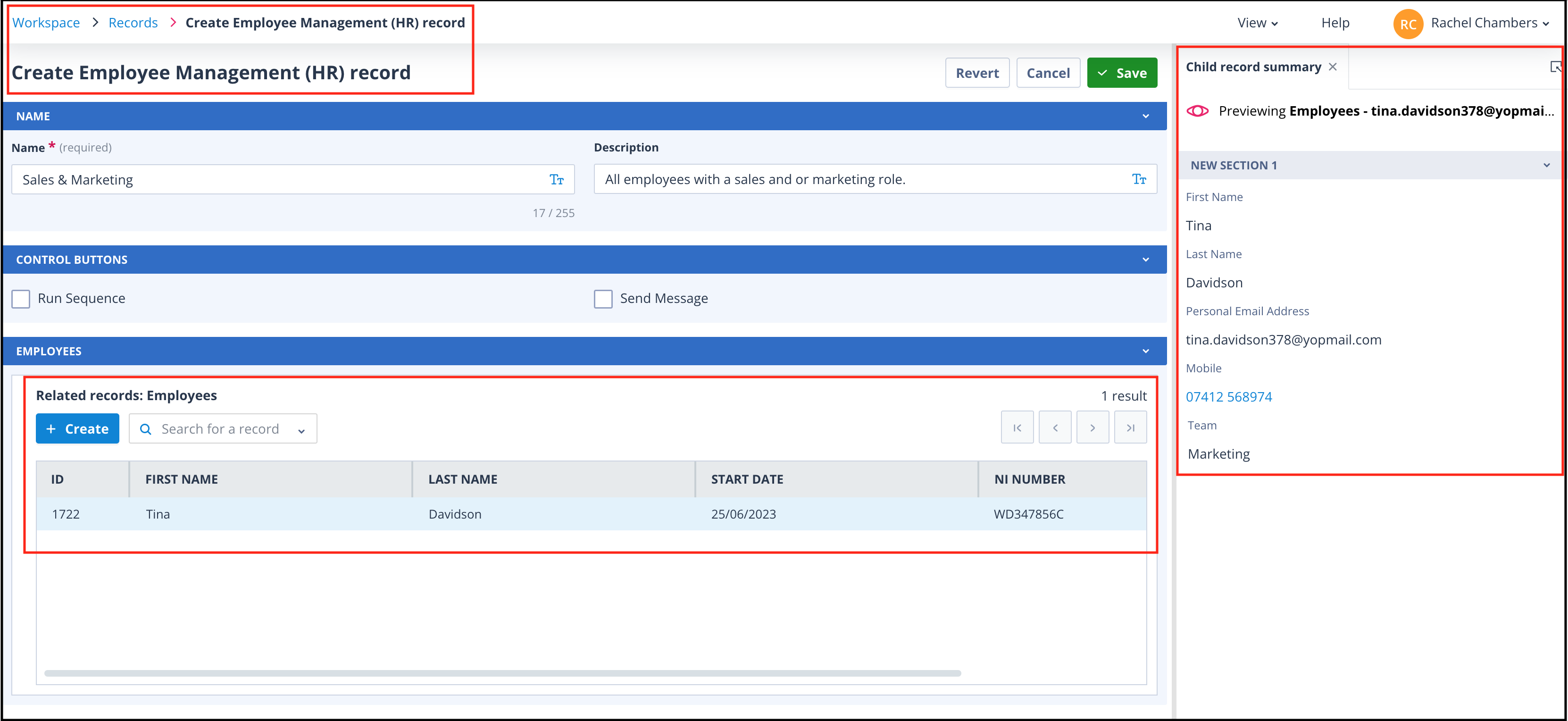
The green fly-out confirming successful creation of the record will be seen.
The Employee record will be created and the child modal will close. The create Employee (HR) record will be in the main content area. The newly created child will be selected in the Employees child component and the Child record summary will be displayed in the side panel.
Save the parent record
Once the data entry is complete for the root parent record (Employee Management (HR)), click Save.
The record will be created. A blank create record page will be displayed in case you want to create another record.
If you don't want to create another record, click the Cancel button at the top right hand side of the page or "Records" in the breadcrumbs to take you back to the Records list.
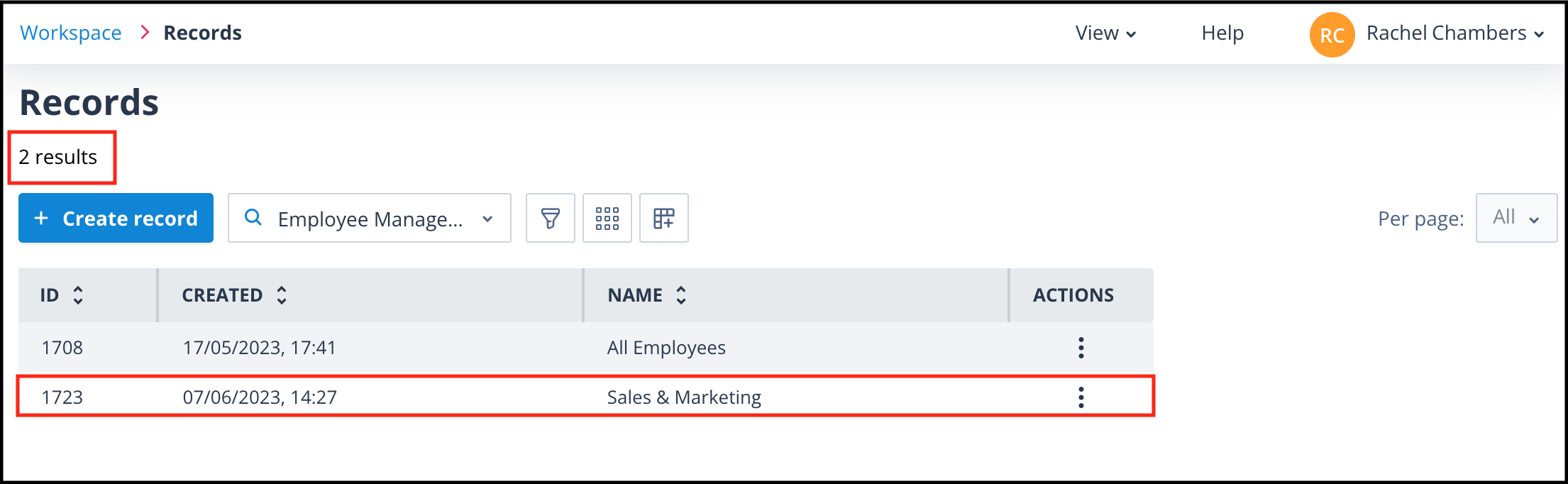
The newly created record can be found in the records list as shown above, ID 1723.
Filtering the list to Employees or Employment Contracts will allow you to find the newly created child and grandchild records of this one. However, these can be accessed via the newly created root parent record.
Find out more about interacting with child records via the parent record.
Useful info
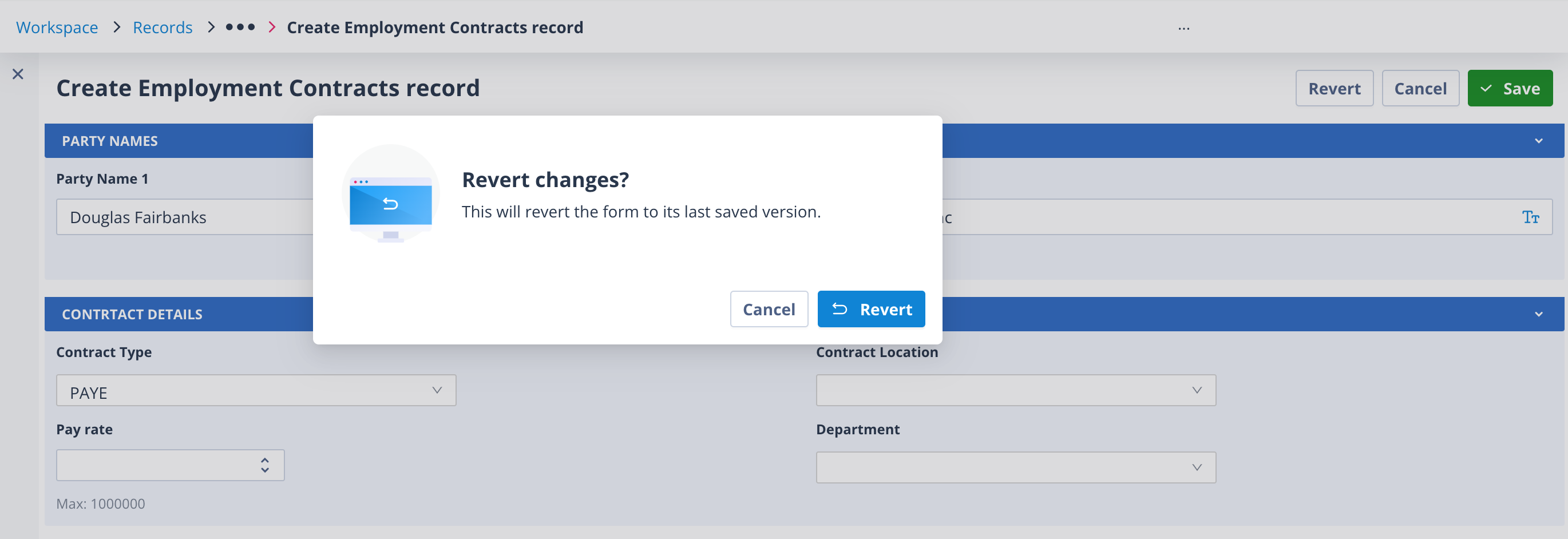
If the create form is blank, the Revert button (next to Cancel and Save) will be disabled. However, if data has been entered, the Revert button will allow the user to reset it. If the form contains unsaved changes, the user will be asked for confirmation: