
Interacting with associated child records via the parent
This article explains how to do the following:
- View summary details for the selected child record within a parent record.
- Open the child records as a fly-out.
- Recurse through child and grandchild records, etc. via the parent record.
Prerequisites
It assumes that you have:
- used the Relational modeller to create parent/child relationships between your object classes (creating the relational model)
- edited each parent object class in order to add the available child object classes into the create/edit view (configuring relationships in object classes)
- records with associated child records in your system
- the appropriate permissions to view records in each of the object classes
Relational model
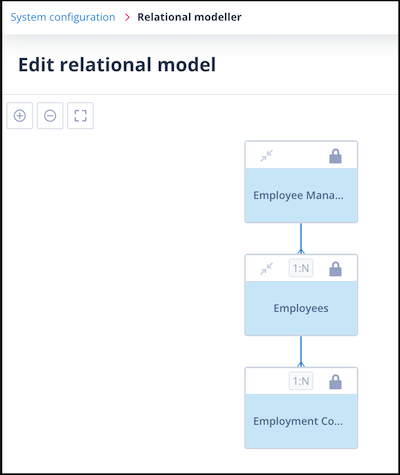
For the purposes of this article, the relational model is shown below:
View child record summary
Start with a record in the Employees object class which has a child object class called Employee Contracts.
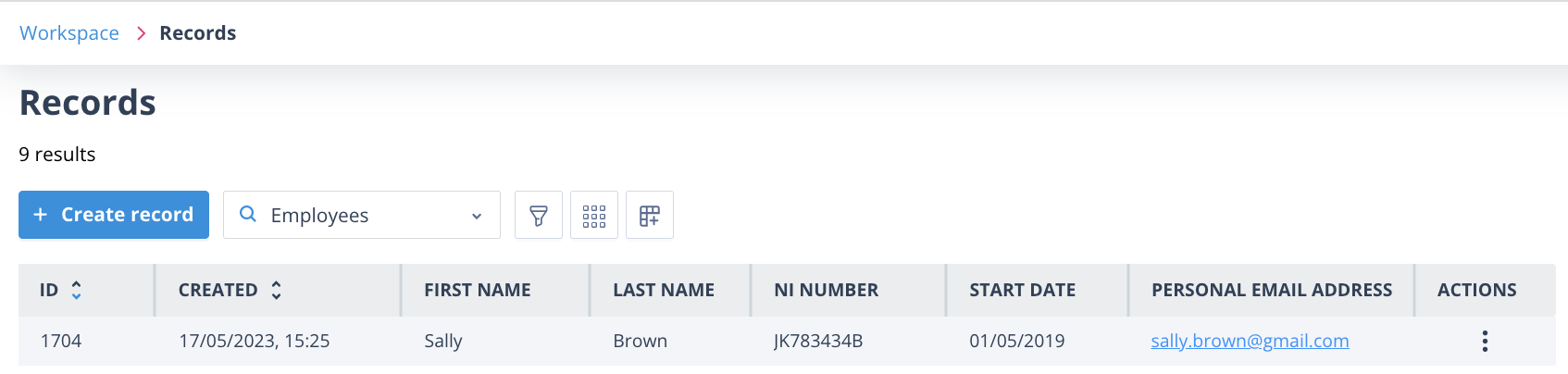
In Workspace/Records filtered to the Employees object class, record ID 1704 is Sally Brown:
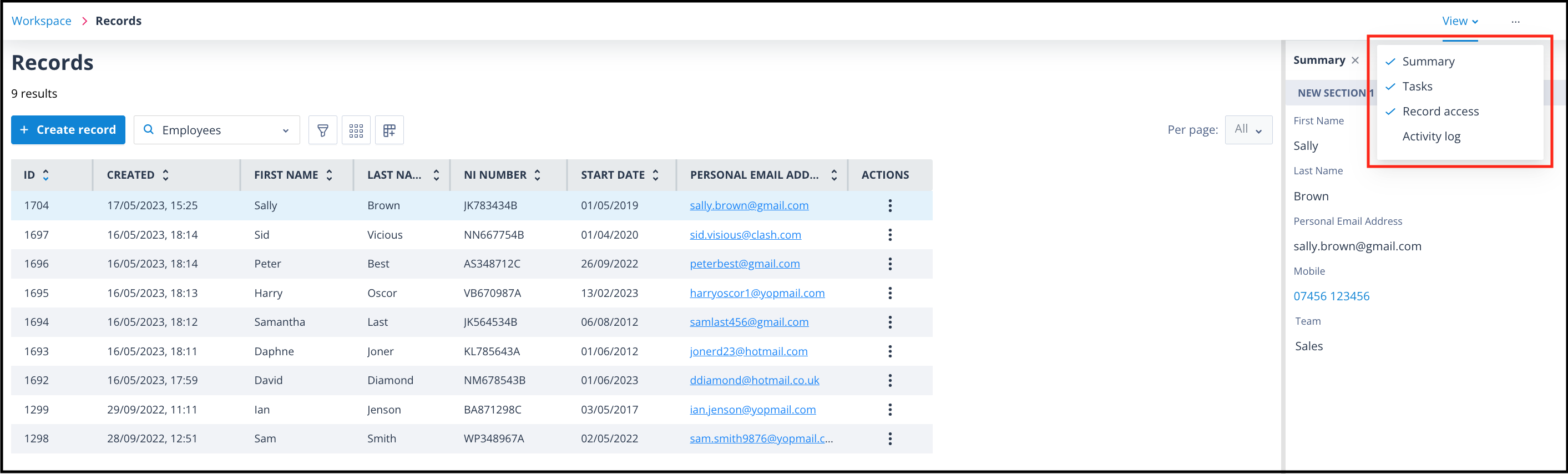
Note: The sidebar has 4 possible tabs.
Double clicking on this record or selecting Open in the Actions menu will open the record in the create/edit view which was configured in the object class.
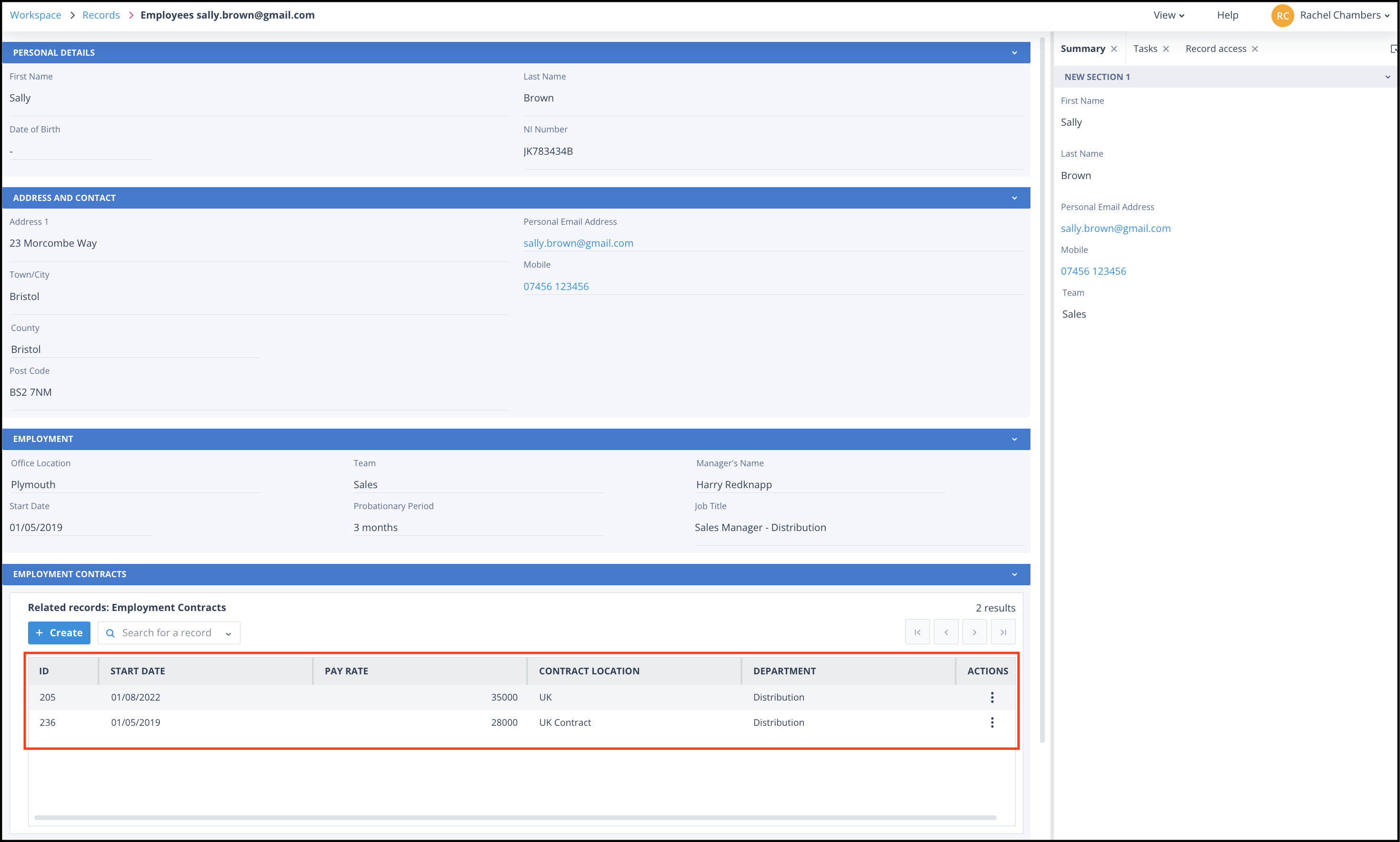
The Employment Contracts section in Sally Brown's record shows her two employment contract records.
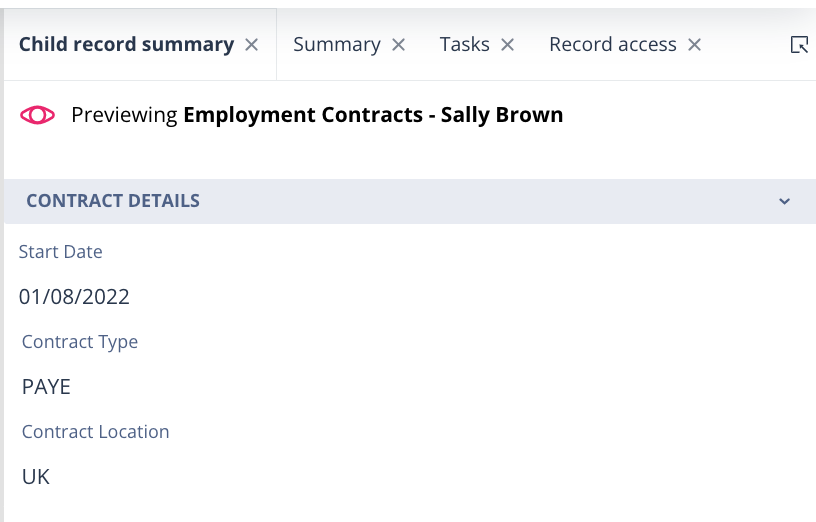
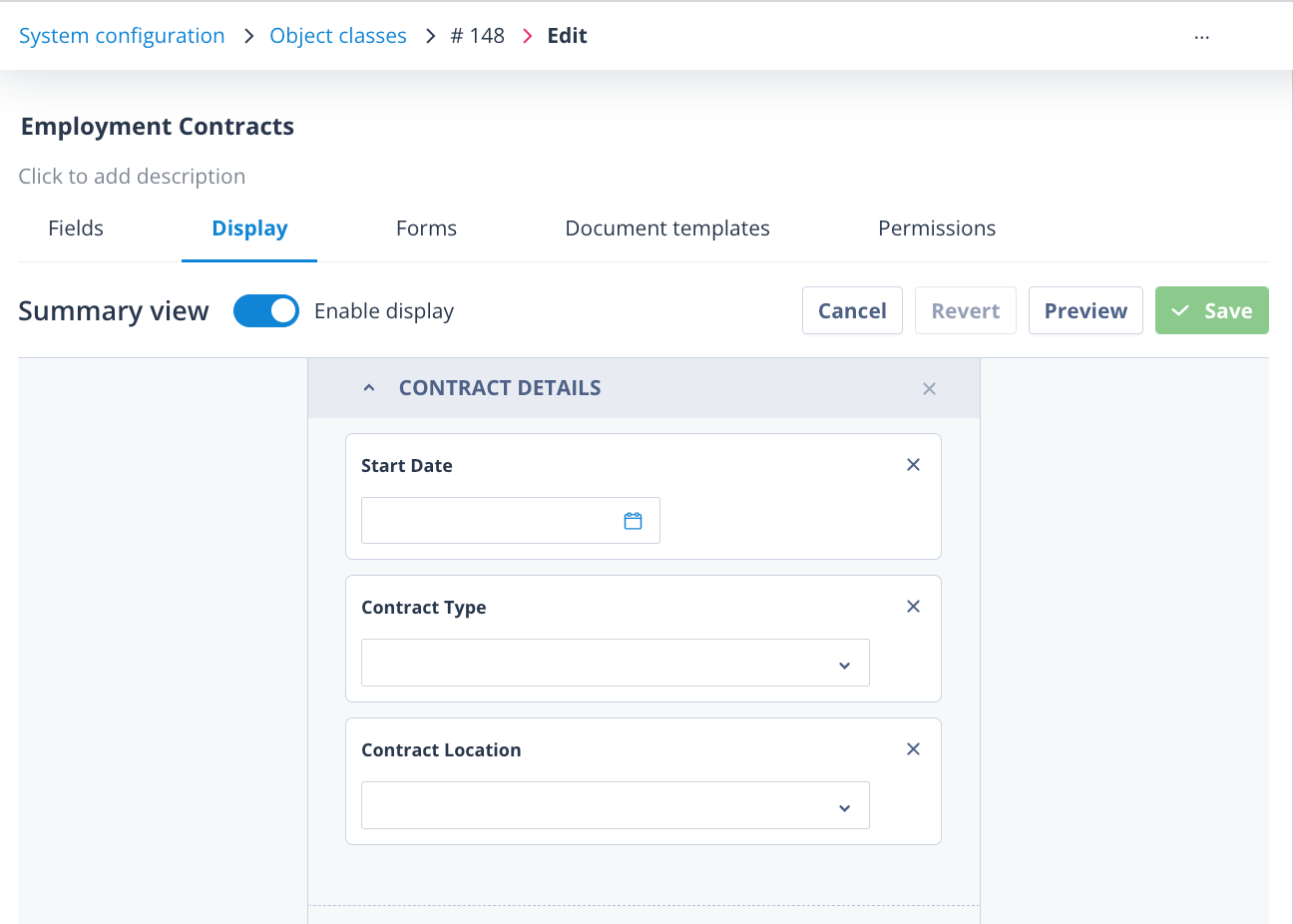
When the user clicks once onto a child record, it will be highlighted in blue and a new tab called Child record summary will be available in the sidebar. This will provide the details for the summary of the child record as configured in that child object class Summary view.
| Selected child record | Child record summary |
|---|---|
 |  |
If the user clicks onto another child record, the Child record summary will update to show details for the newly selected child record.
The tab has an icon and text to ensure that the user can see this is a preview of the child record. The text is made up of: Previewing <<object_class_name>> - <<Identifier>>. That is the name of the child object class, ie Employment Contracts, and the data from the field on this class marked as the identifier.
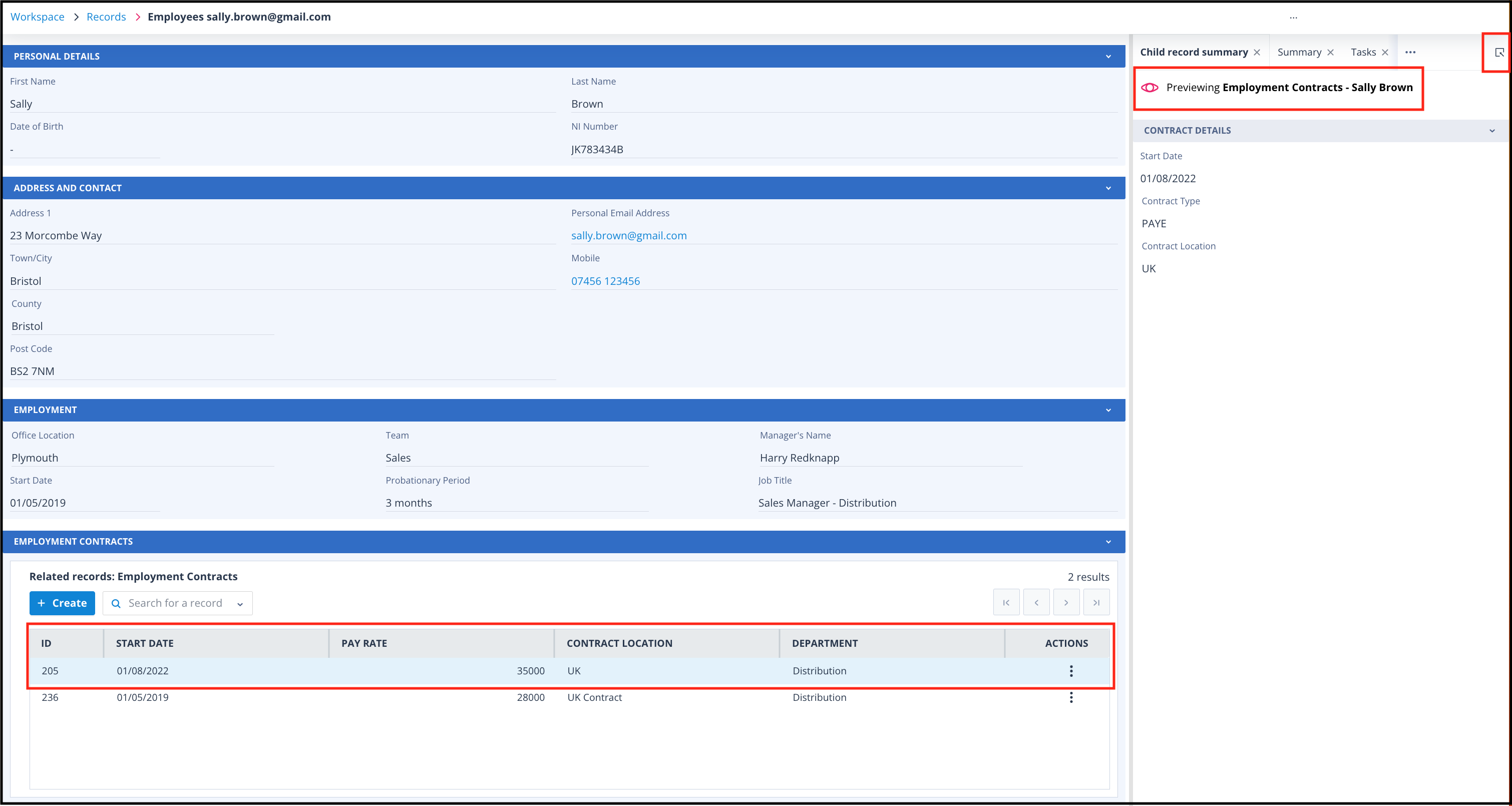
As with all other tabs in the sidebar, the far top right-hand corner of the Child record summary tab has the clickable icon to allow this page to be opened in an external window.
If the child summary view has not been configured or it is disabled, the tab will show the following:
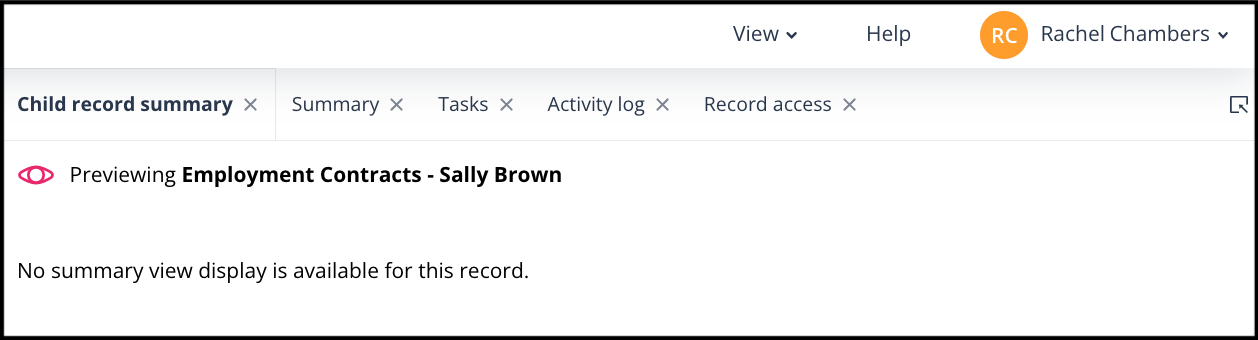
Important: All other tabs in the sidebar will remain in context of the parent record from which the child is accessed.
Open child records
You can open the child record as a fly-out by double clicking on it or selecting Open in the Actions menu.
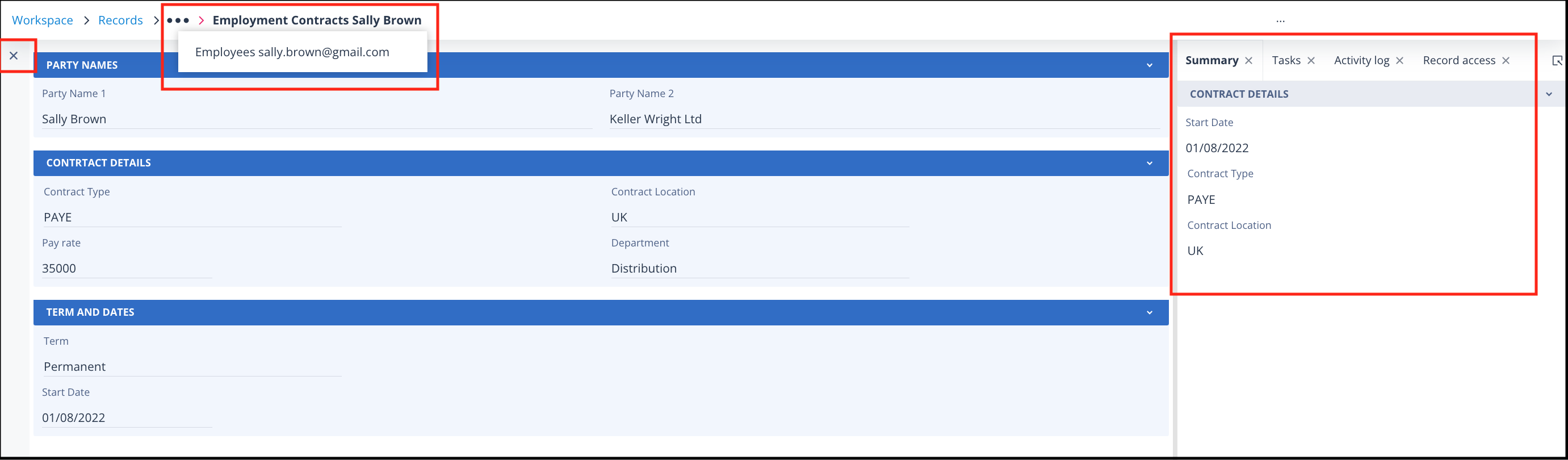
When the child record is opened, the summary tab will relate to the opened child record and there is no Child record summary tab in this example because records in the Employment Contracts class do not have children. All other tabs will update so that they also relate to the opened child record.
If the create/edit view has not been enabled for the child object class, the record will still "open" but with the display telling you that this view is disabled, as below:
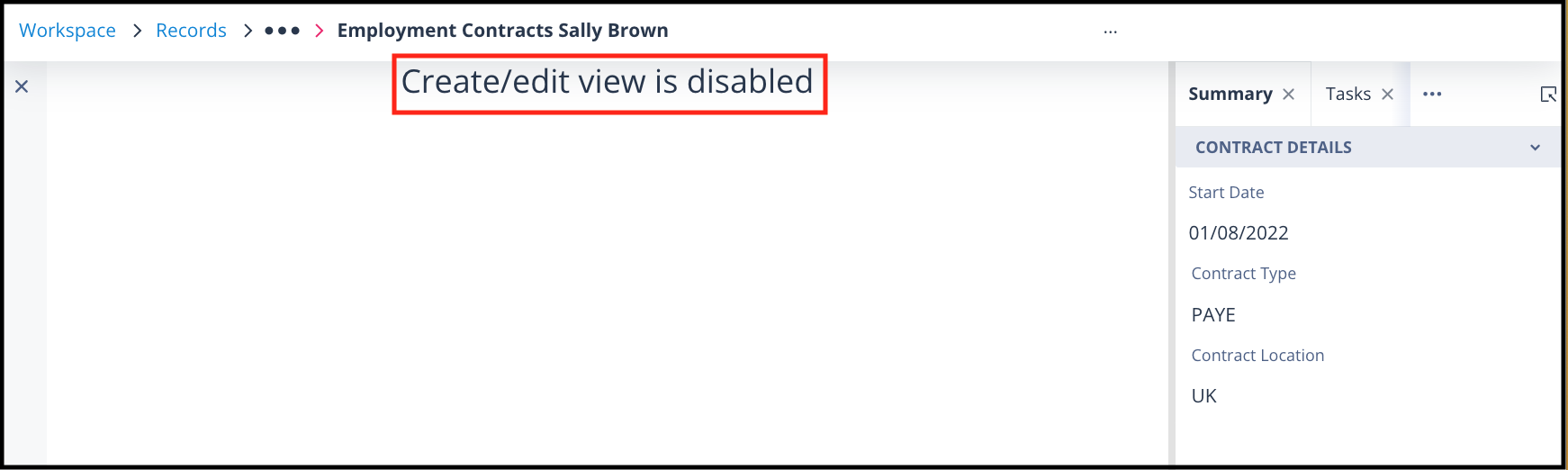
You can return to the parent record from the menu in the breadcrumbs at the top of the record. Alternatively, simply click the X in the top left-hand corner of the child record to close it.
Recurse through child records
For this section, start at a record in the root parent object class - Employee Management (HR). This object class is the parent of Employees and the grandparent of Employee Contracts. See the relational model above.
Record ID 1708, All Employees, contains 9 Employees' records. The child object class component will only ever display 5 records.
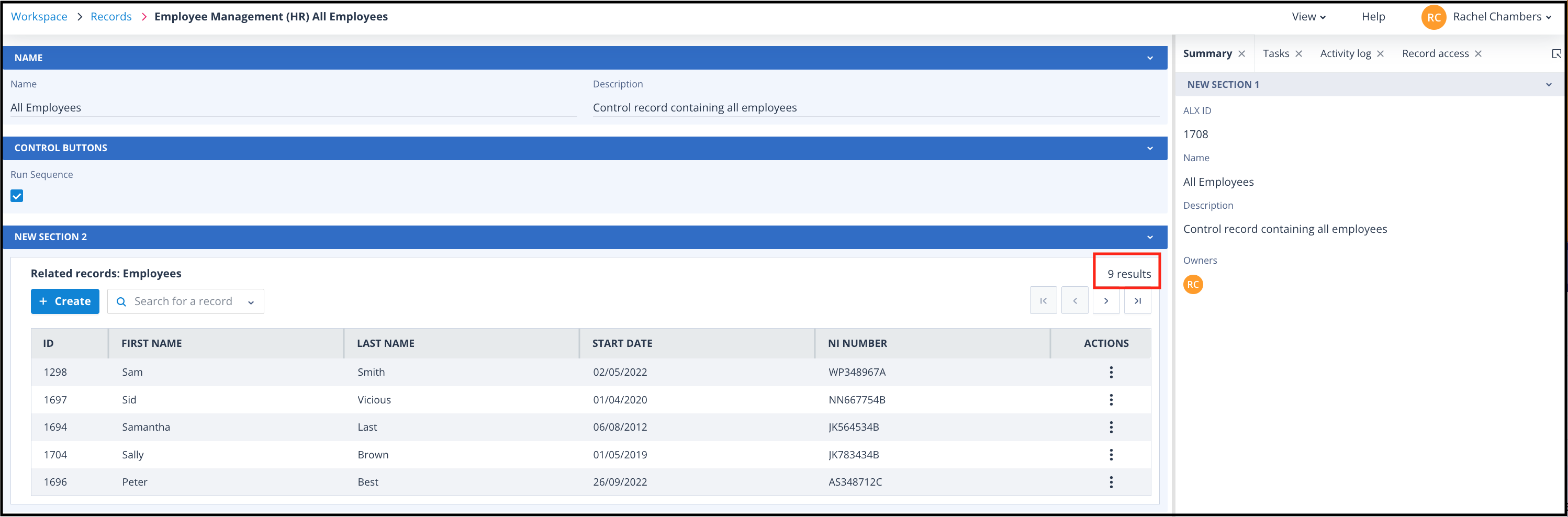
There are pagination controls which will allow you to click through further pages of 5 records at a time.
If you have several pages of associated child records, the child search control serves a dual purpose. It can be used to add new children to the parent record, and it can be used for finding an existing child.
Having found an existing child, the list is filtered to show only the selected record and the page controls become disabled.
If we select Sally Brown's employee record, the Child record summary will display information pertaining to this while the Summary view tab will relate to the parent record, ID 1708.
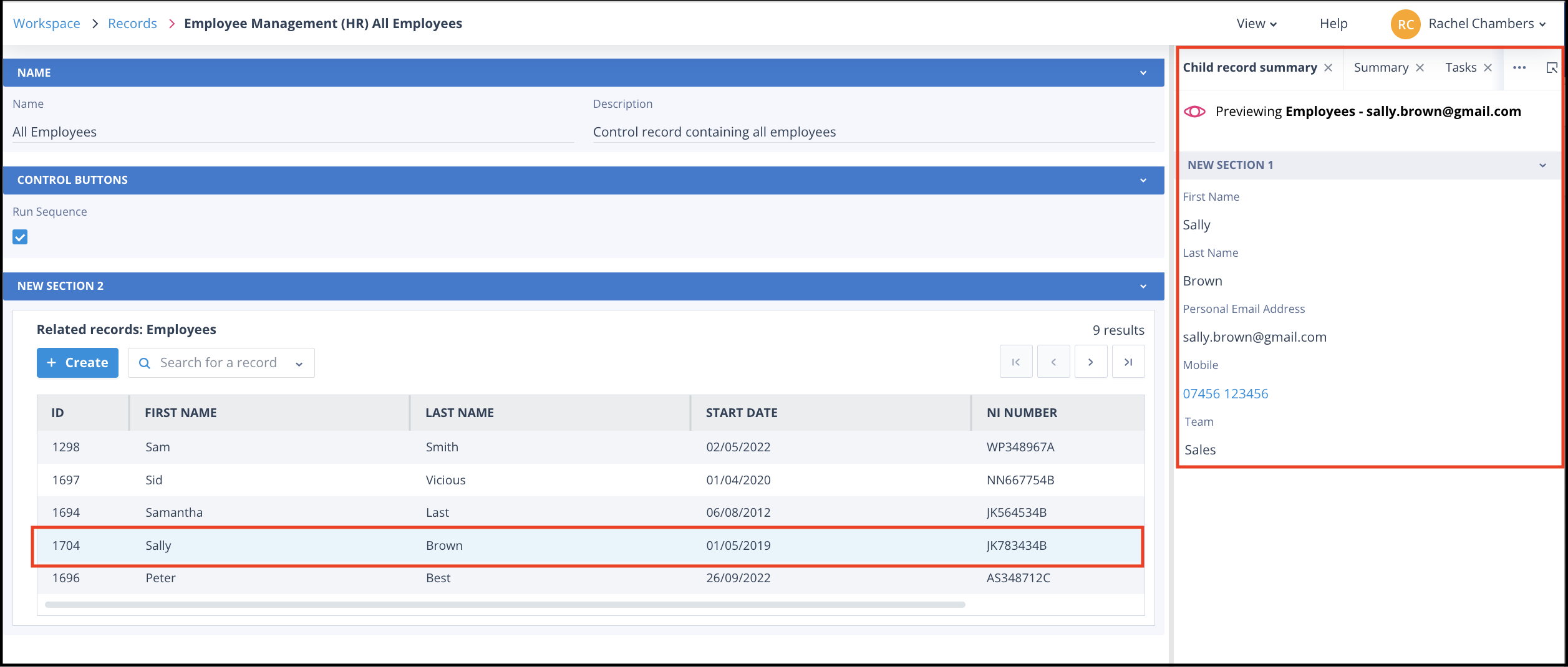
If we double click on the child Employee record or select Open in the Actions menu, it will open as a fly-out in the create/edit view configured for that object class.
Key difference: This differs from the record we started with at the beginning of the article because, as it is a child record fly-out, it has the X in the top left-hand corner to close it and return to its parent record.
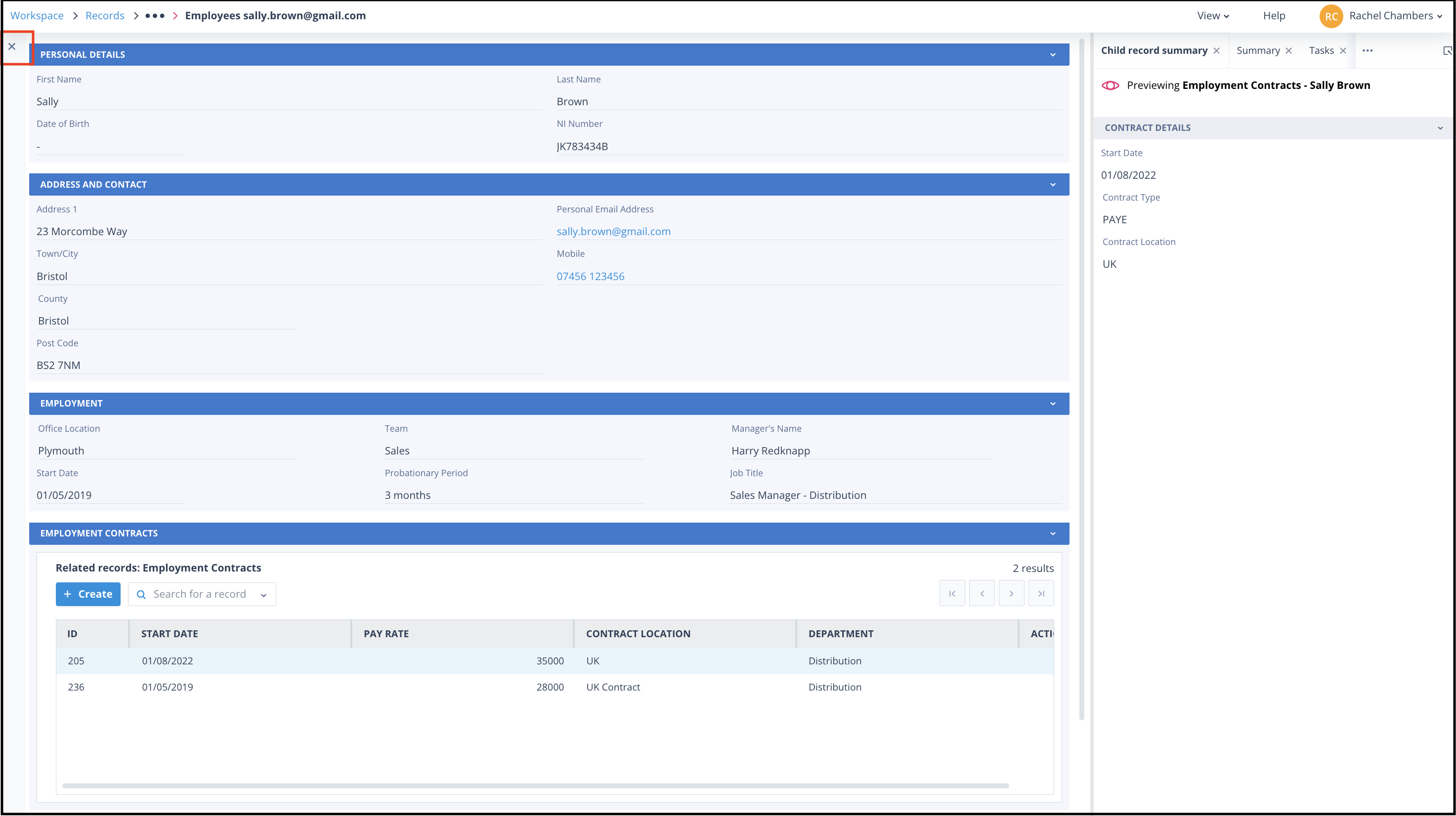
From the Employee record, we can open an Employee Contracts child record by double clicking on it or selecting Open in the Actions menu.
From our original parent record ID 1708, we have now reached one of its grandchild records. The menu in the breadcrumbs will allow you navigate back to the Employee Contracts parent, Sally Brown, or grandparent record, All Employees.
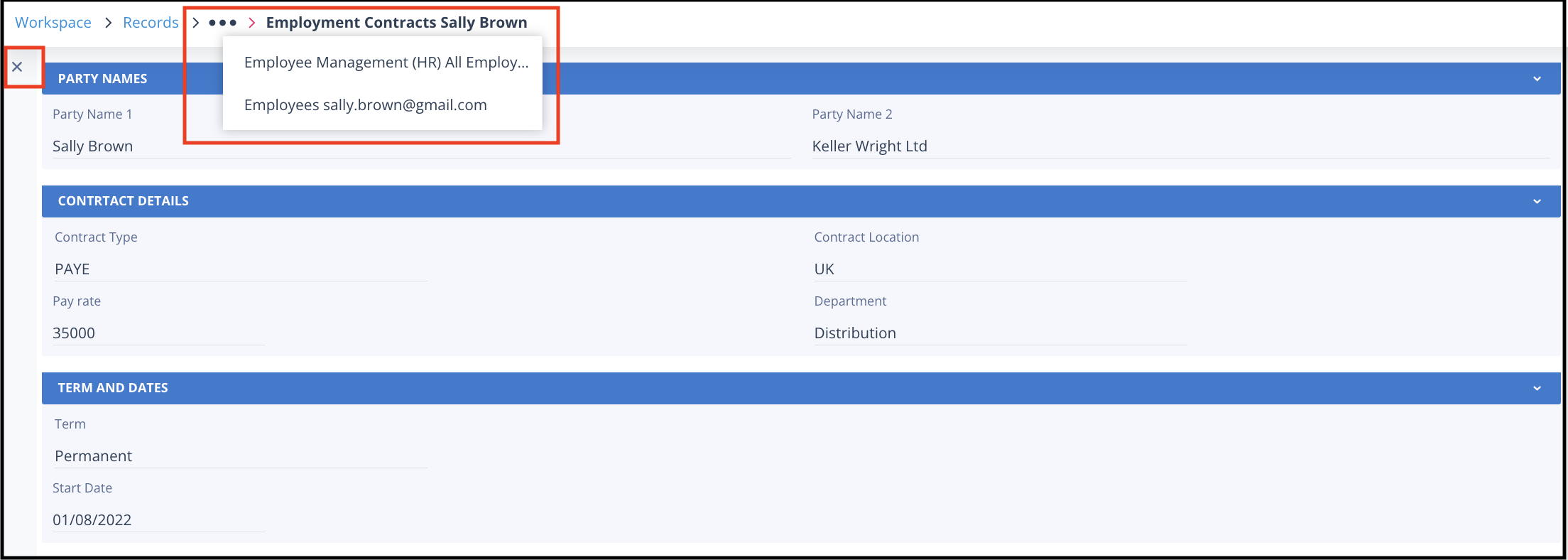
A user will be able to recurse from a root parent record to 5 levels deep as this is the maximum number of parent/child levels for any relationship.
Things to remember
When recursing through child records:
- the user will only be able to open one record on each level.
- if the user navigates back to the parent, any open child/grandchild records of the parent record will automatically be closed.