
Introduction, user accounts and best practice
The Autologyx Catalyst Admin Portal lets authorised customer administrators view system limits and migrate configuration between Catalyst builds. This article explains how to access the portal, set up an account and follow recommended administrative practices.
What can you do in the Admin Portal?
The portal provides two main functions:
- Builds: View the builds in your namespace and inspect their system limits.
- Migrations: Copy supported configuration from a Source build to a Target build, and review migration history and progress.
A build is a Catalyst environment, such as development, testing, staging or live. Builds belonging to your organisation are grouped within a namespace. The Admin Portal is shared across the builds in that namespace.
Access the portal by adding /admin-portal to the URL of any build in your namespace:
https://<BUILD_URL>/admin-portalFor example, the development and live build URLs within the same namespace both take you to the same Admin Portal. Once signed in, your portal account can administer all builds in that namespace; you do not need to access each build's portal separately.
Who should have an Admin Portal account?
Admin Portal accounts are created by the Autologyx Client Value or Development team following a customer request.
Access should be restricted to people who understand the consequences of viewing system configuration and running migrations. Recommended users are Super Admin users of their Catalyst builds or members of the customer's IT team with appropriate technical knowledge.
Important: A migration can change configuration in a live environment, and the Target build is likely to become unavailable while a migration runs. The Admin Portal is not intended for casual use.
Activate your Admin Portal account
After your account has been created, you will receive an activation email, similar to the account creation email used for individual Catalyst builds.
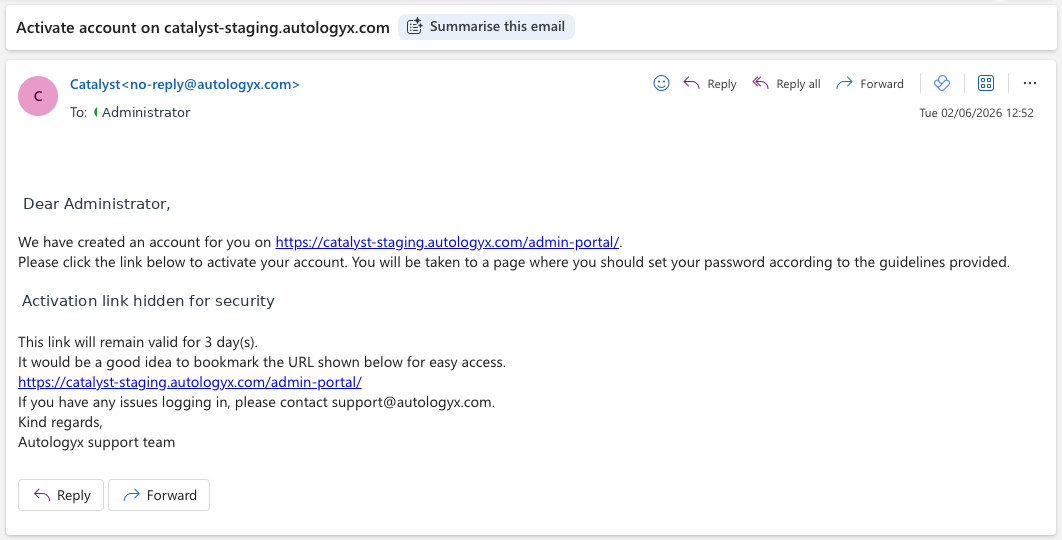
- Open the account creation email.
- Use the unique activation link to set your password. The link is valid for three days.
- Sign in to the Admin Portal using your email address and password.
- When prompted, set up two-factor authentication. Open your authenticator app, scan the QR code and enter the verification code displayed by the app. The setup is labelled Catalyst Admin Portal.
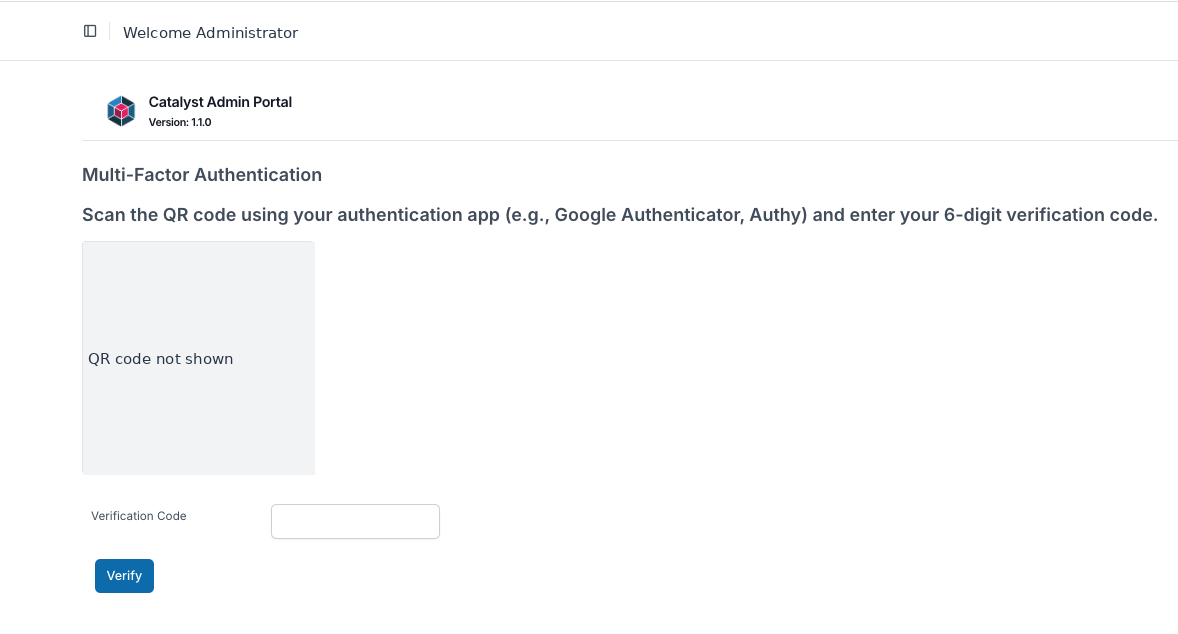
The portal uses its own login credentials. Your username and password for a development, test, staging or live Catalyst build do not automatically give you access to the Admin Portal.
Single sign-on (SSO) is not available for the Admin Portal. Sign-in uses an email address, password and two-factor authentication.
Navigate the Admin Portal
After signing in, you will see two sections in the left-hand menu:
- Builds — shows the builds belonging to your namespace.
- Migrations — shows migrations carried out by portal users.
The log-out option is at the bottom left of the page.
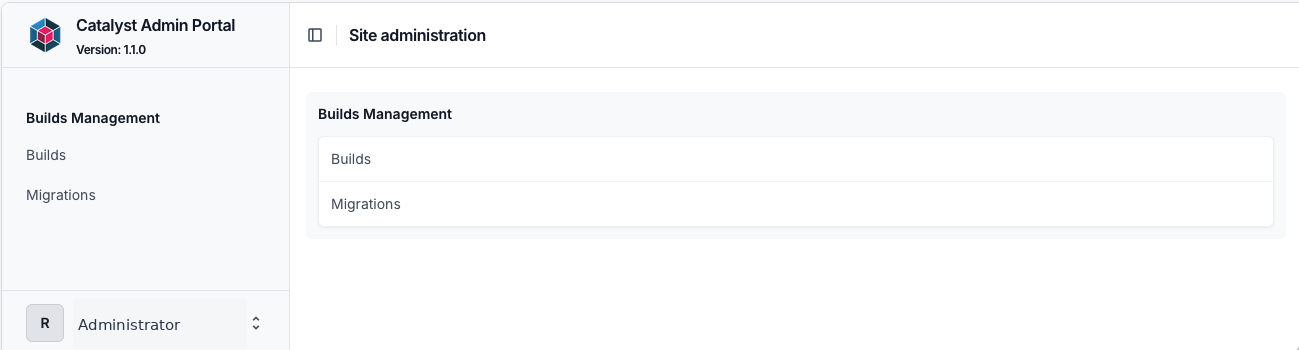
For more information about these areas, see Builds and migrations.
Best practice
- Limit access. Give portal accounts only to nominated administrators who understand migration risks and downtime.
- Agree a migration window. All migrations must take place outside working hours. The Source build must not be used during the migration, and downtime is expected on the Target build.
- Check support availability. Before migrating, contact the Autologyx support desk to confirm assistance will be available if required.
- Promote configuration through the agreed build sequence. Do not independently recreate configuration in multiple builds, because this can cause conflicting IDs and failed migrations.
- Treat migrations as significant changes. Check the Source and Target carefully before starting; an in-progress migration cannot be stopped, and a successful migration cannot currently be rolled back.
- Review system limits separately. Read the Capacity and System Limits Knowledgebase article before requesting limit changes. System limits are not copied by a migration.
Useful info
- Read Before you perform a migration to learn what will and will not be copied.
- Read The importance of IDs to understand configuration conflicts.
- Follow Performing a migration when you are ready to run a migration.