
Outbound mail setup
This is one of the most important system settings, as here you will define and configure which mail service is used for all outgoing email notifications.
Access
The Outbound mail setup page is found under Administration in the left hand menu. Only users with a Super admin account type will have access to view and edit these details.
Mail service options
There are three options under What kind of mail service are you using?
Recommended option: Microsoft Office 365 Exchange (Graph) with oAuth 2.0.
This is because Microsoft support for Basic Authentication (the traditional username and password method) for third-party apps and services that use SMTP to send email, is being removed from September 2025. After this time, oAuth must be used.
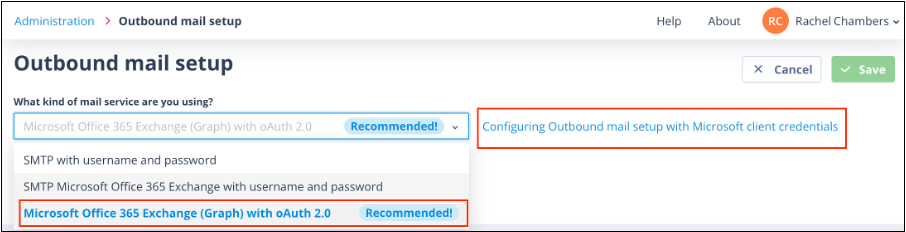
When you choose this option, we have included a link to a help article which will take you through the steps required to set this up. That article can also be accessed here: Configuring Outbound mail setup with Microsoft client credentials.
Requirements
You will need access to your Azure Active Directory in order to register and configure an Application. If this is not your area of expertise, you will need assistance from your IT department.
You will also need to create an Authentication Object which will securely hold all the details required for the Catalyst system to authenticate itself.
You will find further information here: Creating an Authentication Object.
Microsoft Client Credentials settings
After selecting the authentication object, enter the Microsoft Client Credentials settings:
- Host
- Port
- Username
You'll notice that the TLS field is defaulted to ON.
Testing mail settings
The Test mail settings button allows you to check the credentials entered. The test result will appear alongside the button, as below:


If the test result returned is not "Authentication success!" you will still be able to save the page, but until the setup is successfully validated, mail will not be sent from the system.
Common errors are as above:
- Authentication Error: where incorrect details have been entered in the authentication object
- Connection error: where the host, port or TLS settings are incorrect
Email fields
The two final email fields are mandatory and are used for the following:
- From email address: this is the email address for the mailbox account and will be shown on all outgoing messages as the From address.
- Backend failure alerts email address: this field will allow you to enter up to 10 email addresses (these can be comma or semi-colon separated) of individuals who will be notified in the event that emails cannot be sent from the system because, for instance, the account settings have been changed and need to be updated here. The email addresses entered here do not have to belong to users of the system.
Validation errors
If you enter more than 10 email addresses, the following error is shown:

If you enter an email address in an unrecognised format, or do not separate the email addresses, the following error is shown:

Editing existing settings
If you are editing the page settings, you'll notice that the password is concealed with asterisks when basic auth is being used. As another security measure, we have ensured that the password cannot be copied from this field.