
Editing a User group
Who can edit a User group?
The following users can edit User groups and manage their members:
Users with a Super Admin account type have unrestricted access to all User Groups, including owner and member management and permission configuration.
User Group Owners with a Config Admin account type can access the User Group from the Administration menu. They can promote members, demote owners, remove users from the group, and delete the User Group. However, they cannot add new members because they can only see users who are already members of the group.
User Group Owners with an Internal account type do not see the User Group in the Administration menu. However, they can access it directly using a URL such as:
https://catalyst-domain-url/administration/user-groups/89where
89is the User Group ID. With the correct URL, they have the same permissions as a Config Admin User Group Owner.
A User Group Owner is always a member of the User Group, and a User Group can have multiple owners.
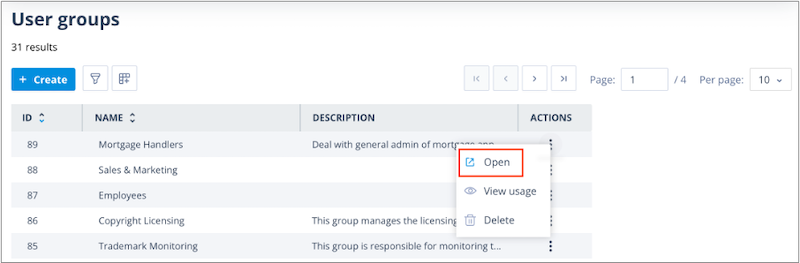
The User Group page can be accessed by double-clicking the User Group row in the list or by selecting Open from the Actions menu.
What can be edited?
Edit page
The Edit page displays the User Group name and description.
These fields can be edited in place by clicking into them, making the required changes, and clicking elsewhere on the page. No additional save action is required.
The description field includes a character counter and supports up to 500 characters.
The page also displays:
- the number of members in the User Group
- the avatars of the User Group owners
This information is read-only and updates automatically when owners or members are added or removed.
Below this section is the List Page Filter Editor.
For more information, see List Page Filter Editor.
Alongside the filter editor is a list filter with the following options:
- Members (default)
- Non-members
- Owners
Users with a Super Admin account type also have an option to display all users in the system.
User Group member list
The member list contains the following columns:
- Name – the user's first and last name
- Username – the user's email address
- Added – the date the user became a member or owner
- Membership – whether the user is an Owner or Member
- Actions – available actions for the selected user
Actions available for members
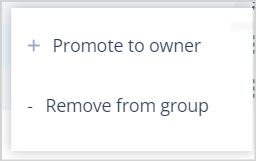
If the selected user is a Member, the following actions are available:
- Promote to owner
- Remove from group
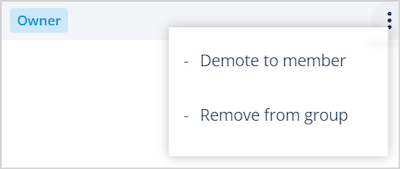
If the selected user is an Owner, the following actions are available:
- Demote to member
- Remove from group
Using filters and actions
Using the list filters and action menus, users can:
- add or remove owners
- add or remove members
- promote members to owners
- demote owners to members
Adding members
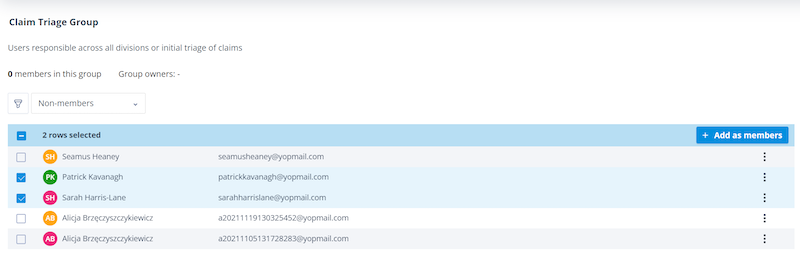
When viewing the Non-members list, multiple users can be added to the User Group at the same time.
After selecting one or more users using the checkboxes, the + Add as members button becomes available.
Removing members
When viewing the Members list, multiple members can be removed in a single action.
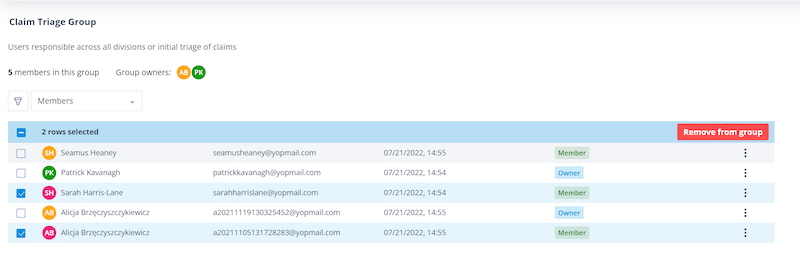
When the action is completed, a confirmation toast message is displayed.
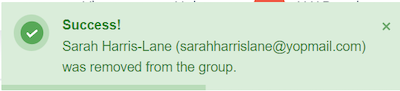
Managing owners
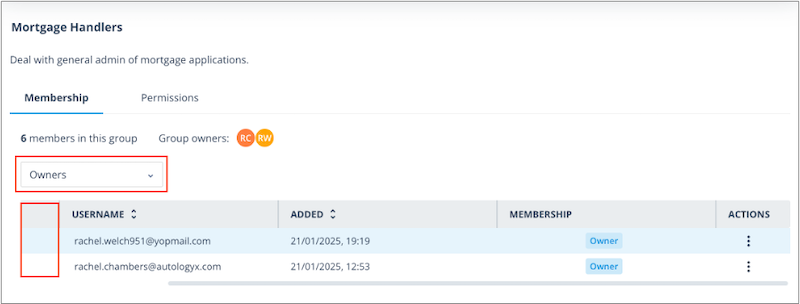
When viewing the Owners list:
- checkboxes are not displayed
- bulk actions are not available
- column filters are not available
- rows-per-page controls are not available
This is because a User Group can have a maximum of 10 owners.
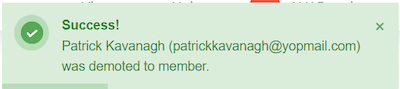
After ownership changes are made, a confirmation toast message is displayed.
For more information, see User Group Permissions.
Things to remember
- Users with a Super Admin account type do not need to be an owner or member of a User Group.
- Members of a User Group with a Config Admin or Internal account type can view the User Group but cannot edit or delete it.
- When a Super Admin clicks an owner or member avatar, the user's contact information is displayed.
- If you cannot find a user in the Members or Non-members lists, remember that the default page size is 10 rows. Increase the page size or use the search function.
- A User Group can have multiple owners.
- Owners are always members of the User Group.
- The maximum number of owners in a User Group is 10.