
How to associate child records with existing parent records
Having used the Relational modeller to create parent/child relationships between your Object classes (click here for how to), and edited each parent object class in order to add the available child Object classes into the create/edit view (click here for how to), your users will now be able to associate child records with existing parent records, if they have the appropriate permissions.
This is done from the Workspace.
In the example previously shown, Mortgage Application is a parent object class with 4 child object classes.
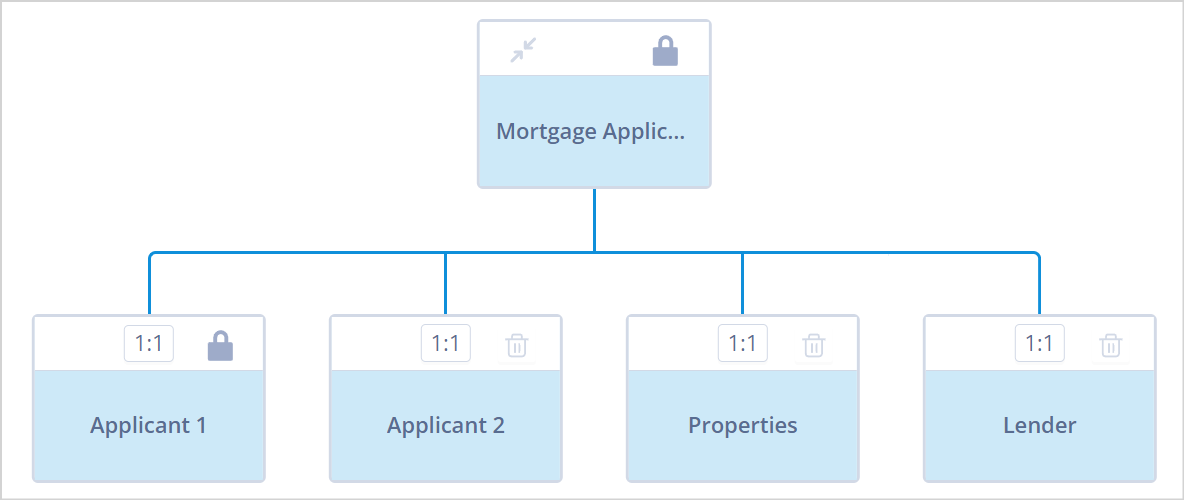
This object class will be used throughout this article. However, the parent:child ratio for child object class Applicant 1 will be changed to demonstrate the different child component views and functionality.
Open the parent record
Filter to the parent object class records, then find and select the record to which you wish to add child records.
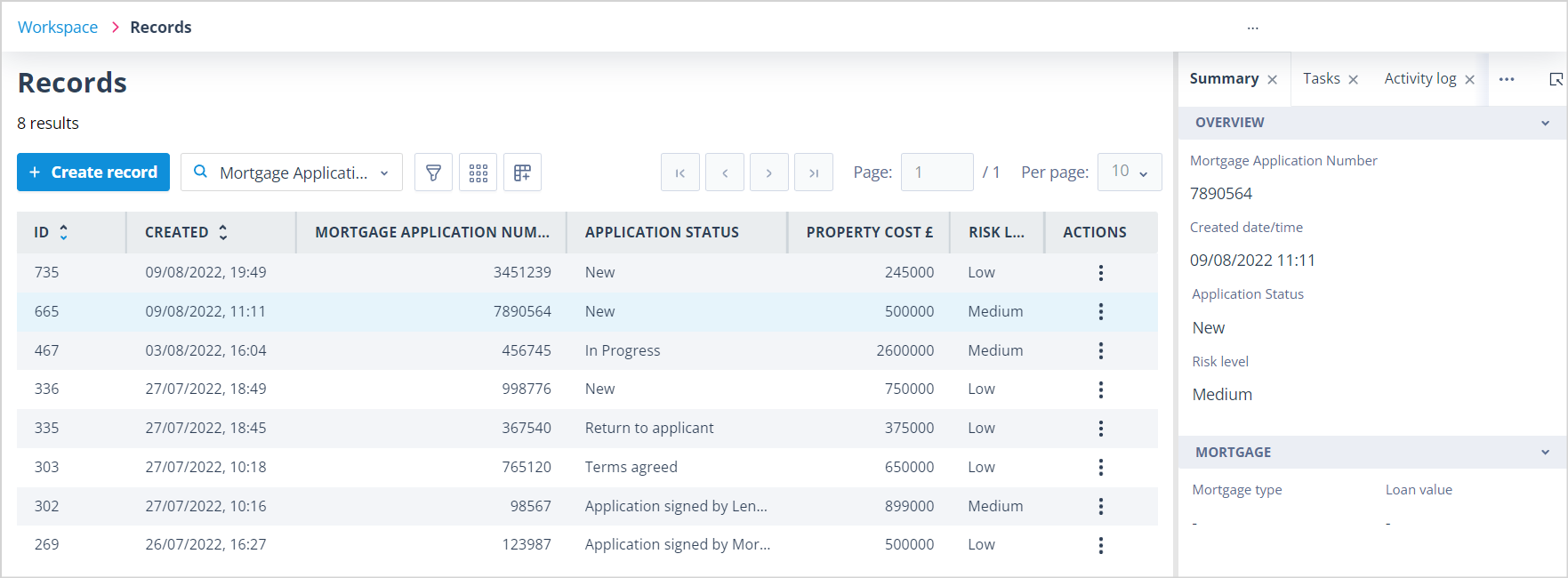
Then double click or select "Open" in the Actions menu. You will be taken to the edit view for the record, as shown below.
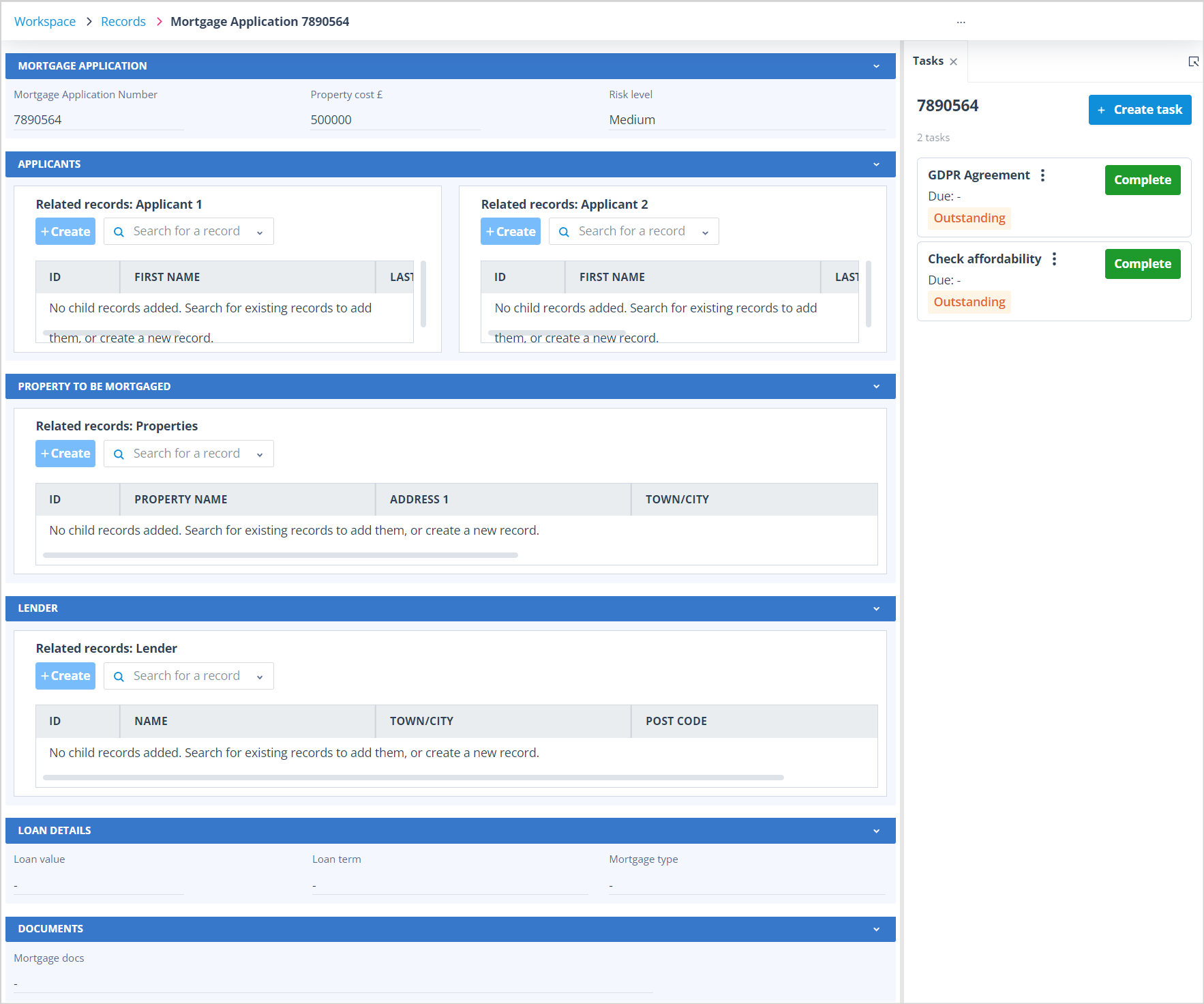
In this example, there are 3 sections where child records can be selected:
- Applicants - you can select an Applicant 1 record and an Applicant 2 record
- Property to be mortgaged - you can select a Property record
- Lender - you can select a Lender record
However, remember that your parent record does not have to contain all its anticipated children right from the start. A Mortgage Application may only have one applicant so, in some cases, it might never contain an Applicant 2 record.
When the parent:child ratio is 1:1
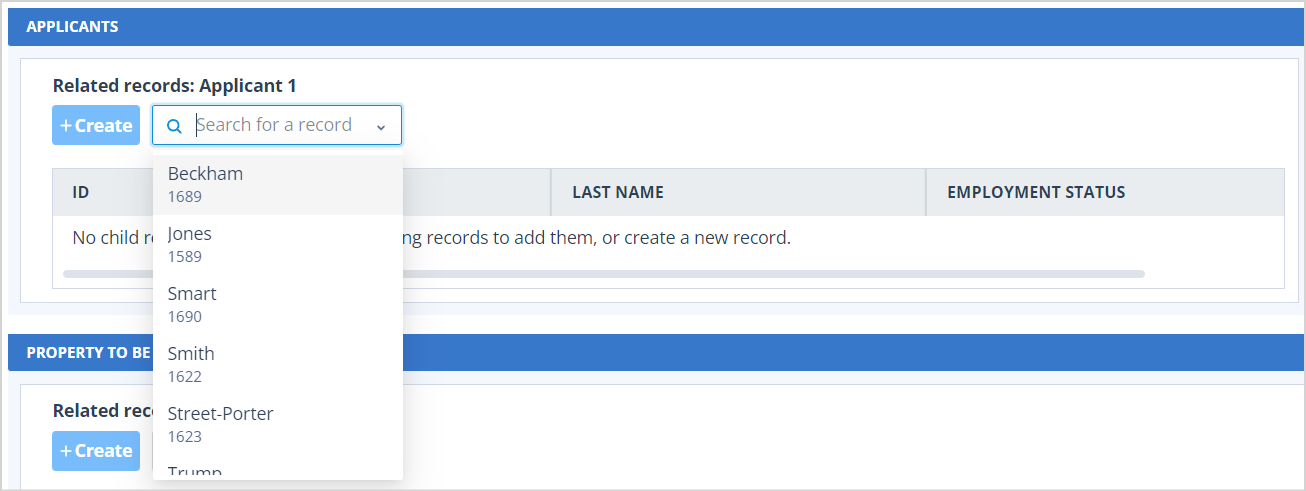
When the parent:child ratio has been set at 1:1 in the relational model, the child record selector will appear as below.
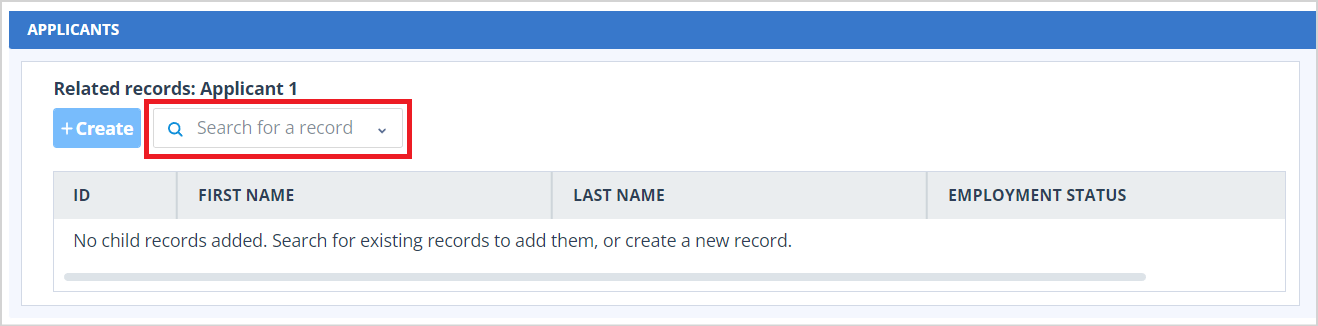
It has a search field which, when clicked into, will display the available child records in alphabetical or numerical order by the field marked as the identifier, followed by the ALX ID number underneath. If no identifier has been set in the object class, the records will appear in numerical order by ALX ID.
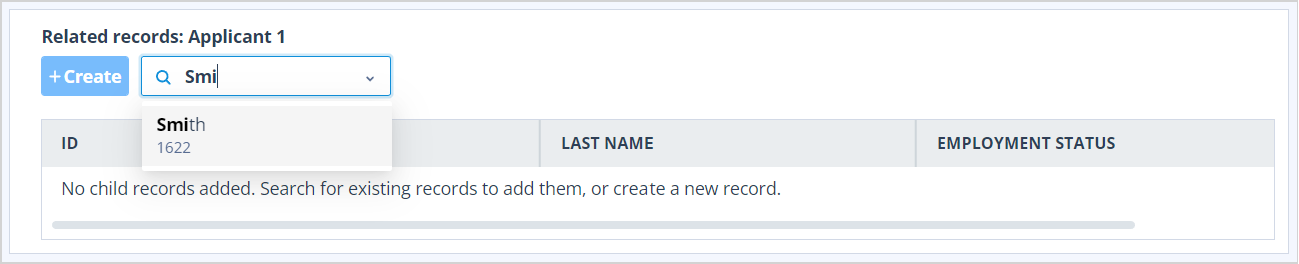
The list of available records will filter according to what is entered in the search field. Matching characters will be shown in bold, as below:
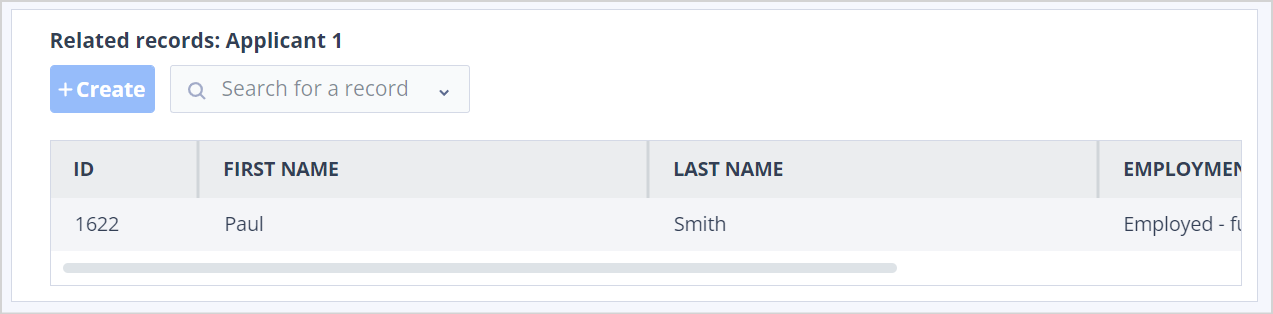
Select the required record by clicking on it to make the association with the parent record.
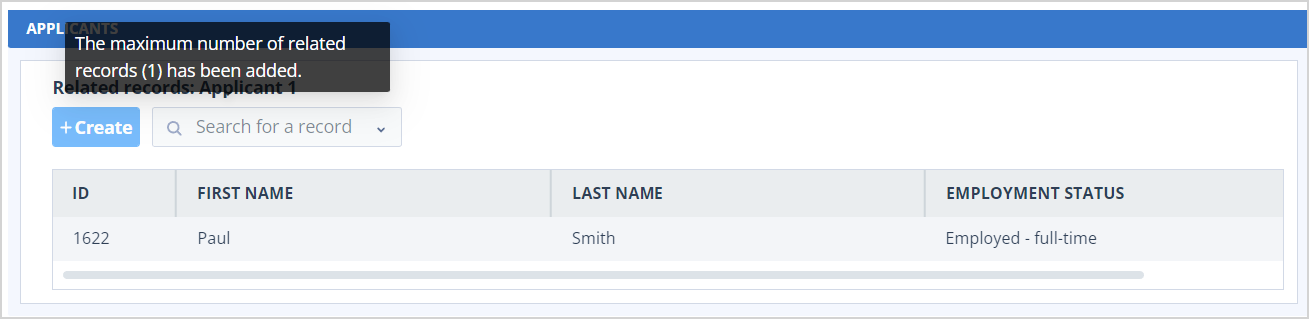
You will not be able to add more than one child record, so if the user clicks into the search field again, they will be shown an error message telling them the maximum number of related records has been added.
When the parent:child ratio is 1:N
If the parent:child ratio has been set as 1:N in the relational model, the child record selector will appear as below. This time it has a results counter in the top right-hand corner.
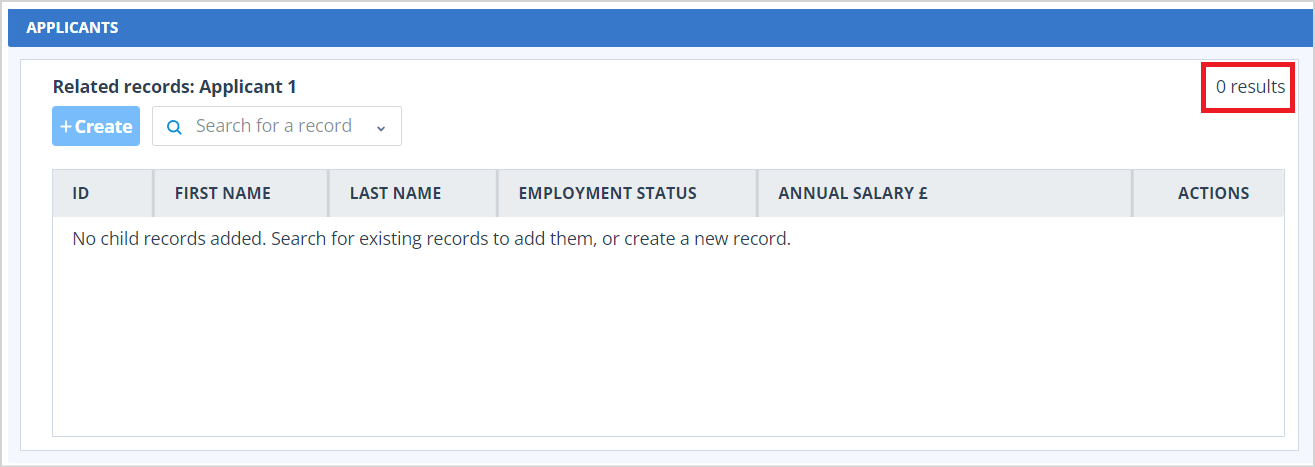
When no child records are associated with the parent, the counter remains at zero (0 results).
When child records have been associated with the parent, the counter will increase to show the total number of associated records. The component will show a maximum of 5 child records.
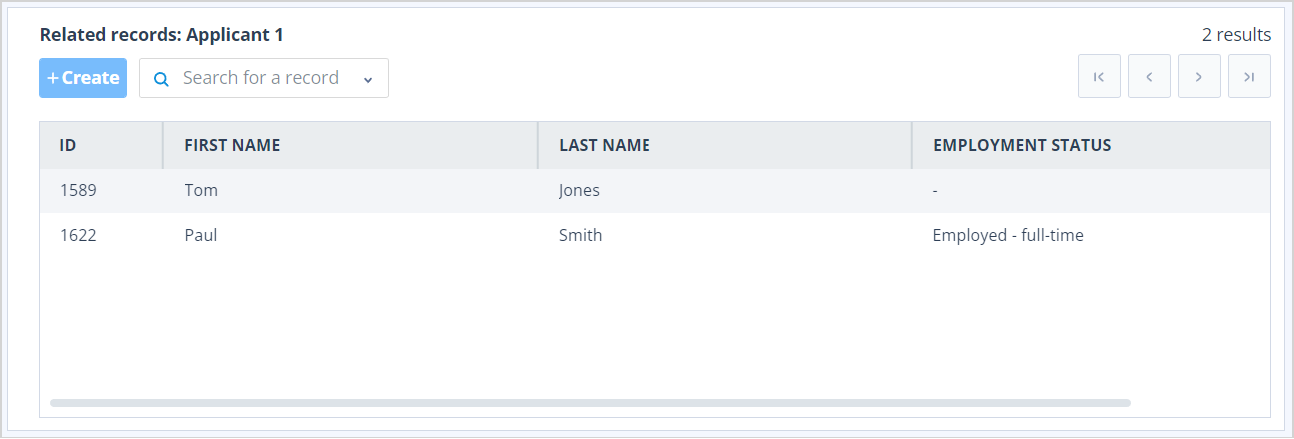
There are pagination controls which will allow you to click through further pages of 5 records at a time.
If you have several pages of associated child records, the child search control serves a dual purpose. It can be used to add new children to the parent record, and it can be used for finding an existing child.
Having found an existing child, the list is filtered to show only the selected record and the page controls become disabled.
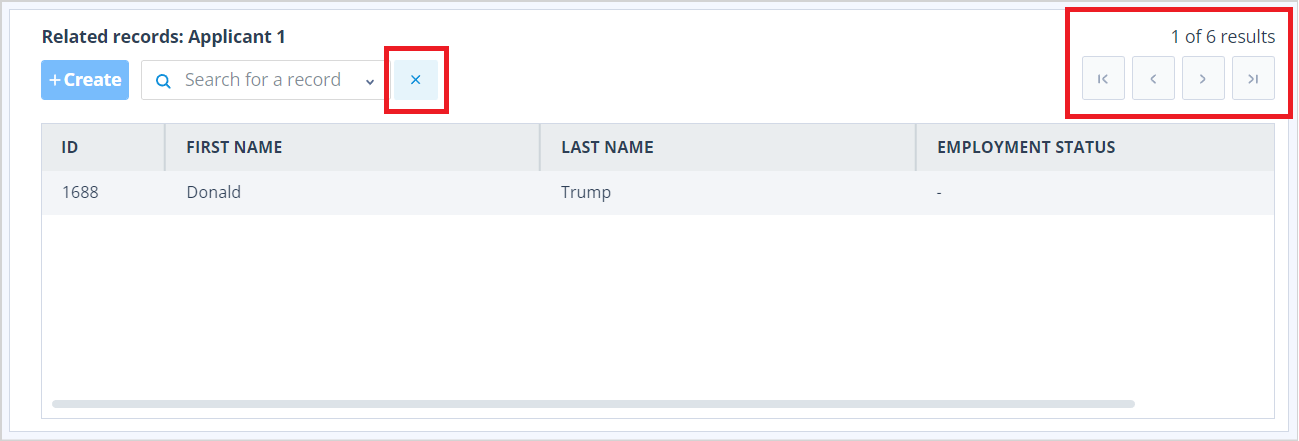
The filter can be removed by clicking on the X to the right of the search lookup control.
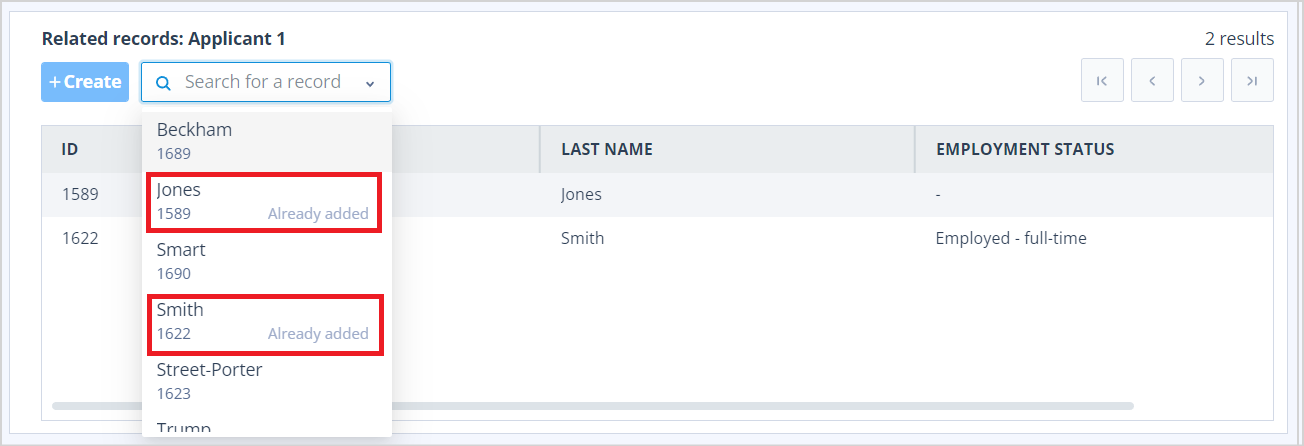
When adding more child records, those already added to the relationship will be shown in the search field with an adjacent "Already added" label.
Child records will appear in the order they are added to the parent, with the last added at the top.
General information irrespective of parent:child ratio
Row heights within the child component adjust according to the row settings in user preferences (the same as in other lists). Click here for an article which will explain how to access these settings.
Selecting a child record will highlight it in blue, and if you have the "Child record summary" selected in the View menu, this summary will open in the sidebar.
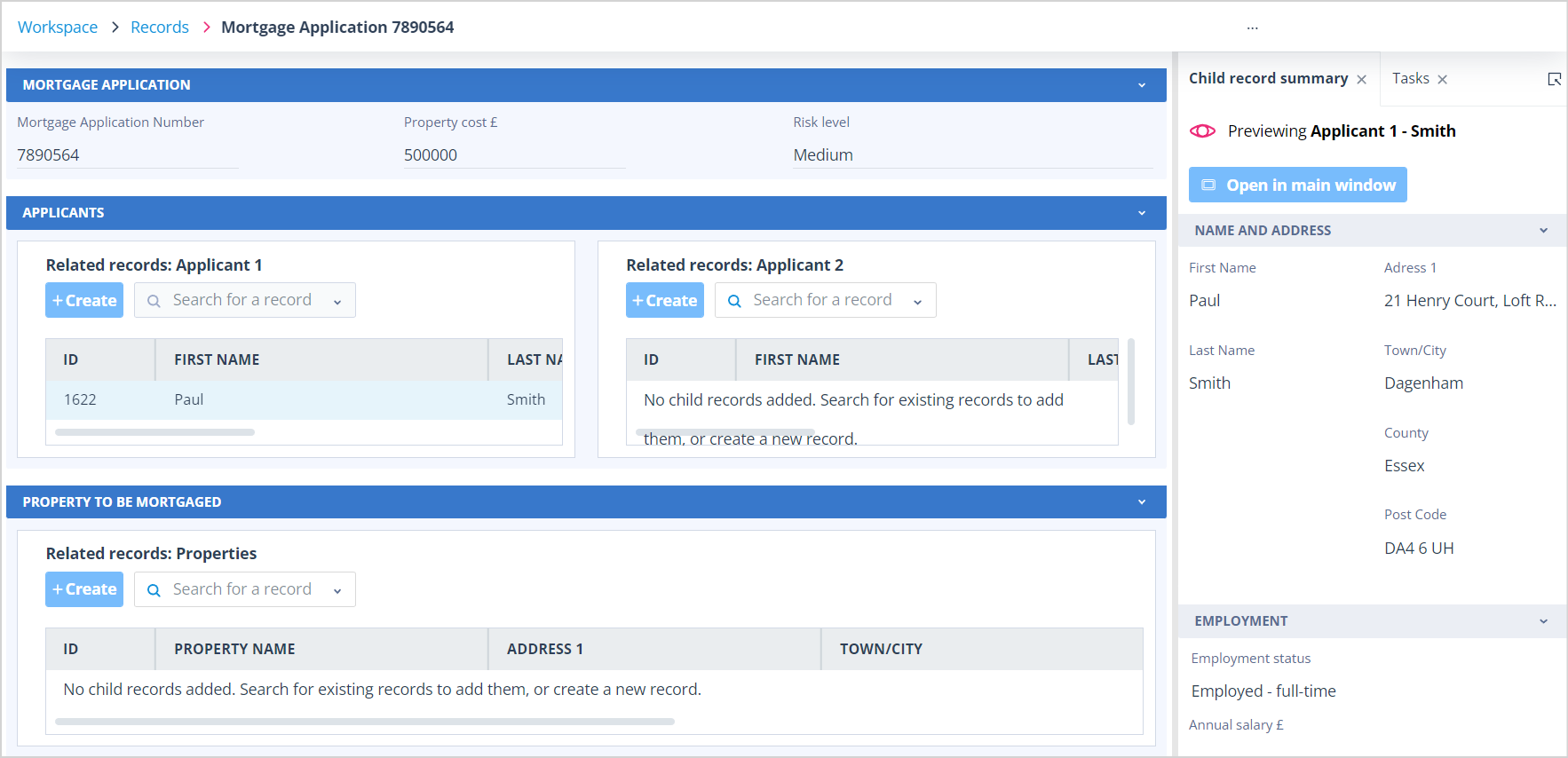
At the top of the child record summary is a button which will allow you to open the child record in the main window using the create/edit view configured in the object class.
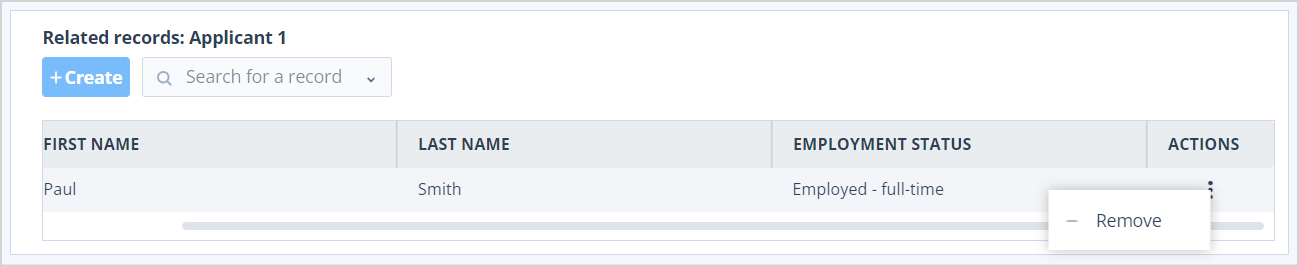
Each child record has an Actions menu at the right-hand side of its listing. When this is clicked, there is an option to remove the record.
If the user double clicks on a child record row, it will open as a flyout.
The child class component has a "+Create" button. This will allow you to create child records and associate them with the parent at the same time. Click here for an article which explains more about this. Please note that you will only be able to create child records to be associated with parent records if you have permission to create records for the child object class and permission to edit records in the parent object class.
Permissions
Depending on user permissions, some components of the child listing may be disabled or hidden.
For example, in the case where the user only has “view record” permission for the parent record (and hence the record form is opened in read-only mode), they are not allowed to add or remove child records, so the +Create button and the child lookup controls are hidden.
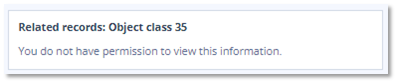
Where the user does not have “view class” permission for the child class, the control contains only the below. Even the child object class name is hidden:
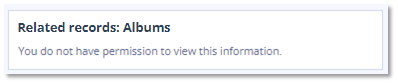
If the user has “view class” permission for the child class, but does not have any record permissions for records in this class, the control looks like in the previous case except the child class name is shown instead of the ID:
When the child record component is empty, the message displayed will depend on the user's permissions as follows:
| Child class permissions | |||
| View class | List records | Create records | Message |
| YES | NO | YES | No records available. Create new records to add them. |
| YES | YES | NO | No records available. Search for existing records to add them. |
| YES | YES | YES | No records available. Search for existing records to add them or create new records. |
Useful info
A limit of 1,000 child records, per child object class, can be associated with a parent. If this limit is reached:
a. The user will be prevented from creating a new child object record as the create button will be disabled and a tooltip will be shown as below:
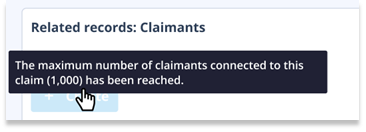
b. The user will be prevented from adding any further children as the search field will be hidden and the below message will appear in its place:

- A limit of 50 children can be created when the parent is being created.