
API Call Actor
The API Call Actor is used to send HTTP requests to external systems from within a Sequence.
It is one of the main ways to integrate Autologyx with other services and platforms. In practice, it is commonly used to:
- integrate with third-party systems
- send data to external APIs
- retrieve data from external systems
- trigger external processes
- synchronise data between systems
- interact with your own Autologyx environment where a direct native Actor is not available
Because of this, the API Call Actor is a key building block for integrations, automation, and more advanced workflow design.
Before you start
Before configuring an API Call Actor, it helps to be familiar with:
Depending on the integration you are building, you may also need:
How to use the API Call Actor
1. Add the Actor to your Sequence
From the Actors panel on the left-hand side, drag and drop the API Call Actor onto your Sequence canvas.
2. Open the configuration panel
Right-click the API Call Actor and select Configure.
You can then complete the API Call configuration using the fields described below.
Configure the API Call
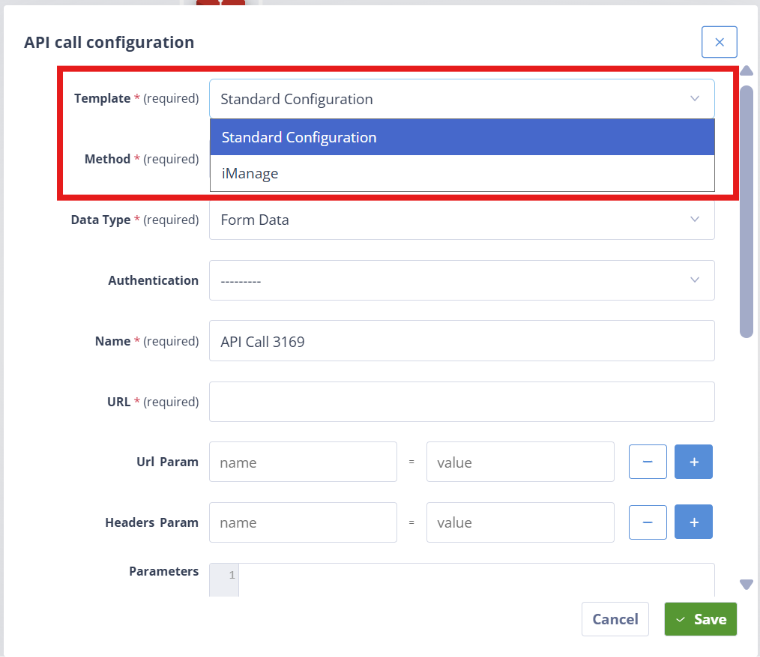
Template
The Template determines the type of API Call configuration.
Available options:
- Standard Configuration — used for general API calls
- iManage — used when working with the IManage integration
If you are using the iManage option, follow the relevant iManage integration guidance.
INFO
The iManage option is only available if the iManage integration has been enabled in your environment.
Method
The Method defines the type of HTTP request being made.
Available options:
- GET — retrieve data from a system
- POST — create a new resource
- PUT — replace an existing resource
- PATCH — update part of an existing resource
- DELETE — remove a resource
The method determines how data is sent to, or retrieved from, the target system.
Data Type
The Data Type defines how the request payload is structured.
Available options:
- Form Data — send simple key/value pairs
- Multipart Data — send files alongside form data
- JSON Data — send structured data in JSON format
- XML Data — send data in XML format
- Binary Data — send raw file or binary content
JSON Data is the most commonly used option.
Multipart Data is typically used when sending files as part of the request, for example when configuring DocuSign envelopes or versioning documents in a document management system.
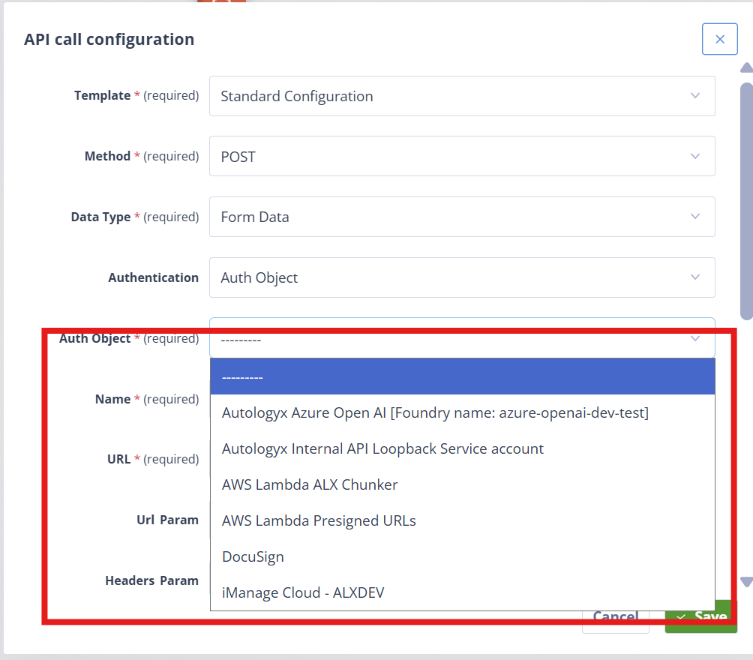
Authentication
The Authentication field determines whether the API Call uses authentication.
Available options:
- Auth Object — use a configured Authentication Object
- "-----" — no authentication is applied
INFO
The Auth Object option is only available if valid Authentication Objects have already been configured in the system.
Auth Object
If Auth Object is selected, choose the Authentication Object you want to use from the list of those configured in the system.
Name
Provide a name for the API Call.
This name must be unique within the Sequence. It is best practice to use a descriptive name that reflects the purpose of the call.
TIP
This is not the same as the visible name of the Actor on the canvas. The API Call name is stored as backend metadata and is useful when troubleshooting or reviewing logs.
URL
The URL defines the endpoint the API Call will target.
This field supports Merge fields and Jinja expressions, which means the URL can be constructed dynamically at runtime.
Examples:
{{ client_url }}/api/tasks/{{ record.tasks_2|map(attribute='id')|max }}/stages/stage_1/owner/
{{ variables.imanage_url }}/documents/Library!{{ variables.document_number }}.1/versions
URL Parameters
URL Parameters allow you to pass additional information to the API as part of the URL, for example filters, sorting, or control values.
Each parameter consists of:
- Name
- Value
Parameters are appended to the URL using ? and &:
?starts the parameters section&separates multiple parameters
Example:
legaloperations.autologyx.com/workspace/records?isInfinite=true&sort=-id
This field supports Merge fields and Jinja expressions.
You can add or remove URL Parameters using the + and – buttons.
Headers
Headers define additional information sent with the request, such as content type or authentication-related metadata.
Each header consists of:
- Name
- Value
Example:
- Name:
Content-Type - Value:
application/json
Headers also support Merge fields and Jinja expressions.
You can add or remove headers using the + and – buttons.
Parameters (Payload)
The Parameters field defines the body of the request, also known as the payload.
This field supports:
- Merge fields
- Jinja expressions
- fully dynamic payload construction
This is where you define the data that will be sent to the target API.
For example, when creating a DocuSign envelope, the payload would include the document details, recipients, and any configuration required by the external API.
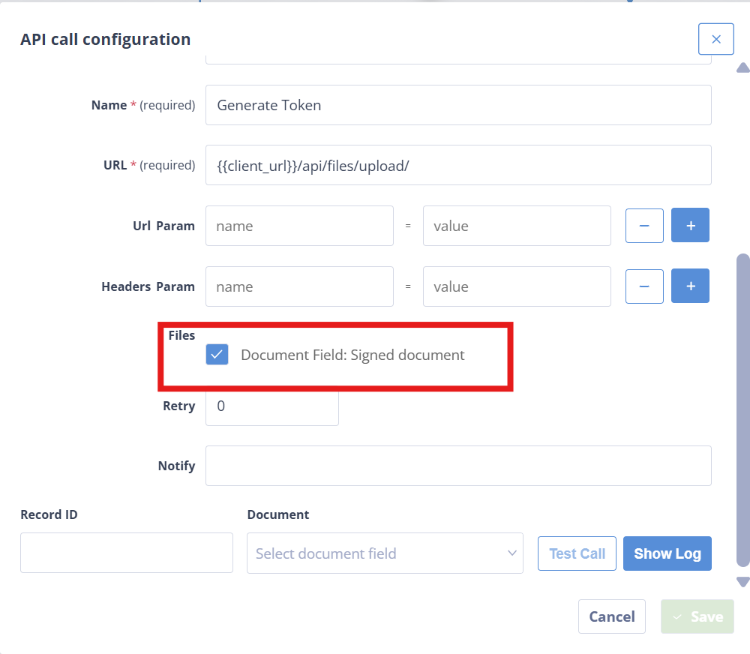
Files
If the API Call follows a Document Picker actor, the selected document will be available to attach to the request.
You can select the file and define the name under which it should be sent.
INFO
This file selection is used only when the API Call Actor runs as part of a live Sequence.
It is not used during Test Call execution. For testing, use the Document field described below.
Retry
The Retry setting determines how many times a failed API Call should be retried.
Key points:
- Default value:
0 - Increasing the value allows the system to reattempt failed calls automatically
Notify
You can provide an email address to receive notifications if the API Call fails.
The notification includes:
- Record details
- Sequence information
- error response details
Testing the API Call
An API Call must be tested before it can be used successfully in a Sequence.
Record ID
Provide a Record ID to test the API Call against.
This ensures that Merge fields and any runtime values can be resolved using real data.
If the API Call uses values from the current Object Record, the Record ID must correspond to a valid Record in the relevant Object Class.
If the API Call does not reference Record data, for example when making a token request, any valid Record ID may be sufficient.
If an invalid Record ID is used, the Test Call will return an error.
Document (for testing)
As noted above, a Test Call does not use the live file selected in the API Call Actor configuration.
Instead, the Document field allows you to select a Record field containing a test file.
This field must be of the Document data type. The Test Call will use the file or files in that field as part of the request.
TIP
Choose a field that contains a realistic example document, so the API Call can be tested in a meaningful way.
Test Call
Click Test Call to execute the request using the current configuration and the data from the selected Record.
The Test Call will execute the API request, but it will not trigger downstream Actor Completed triggers in the Sequence.
If you want to continue the workflow after testing, you will need to re-trigger the Sequence for the Record.
WARNING
If the external API only allows a request to succeed once for a given Record or transaction, you may need to use a different Record for repeated tests.
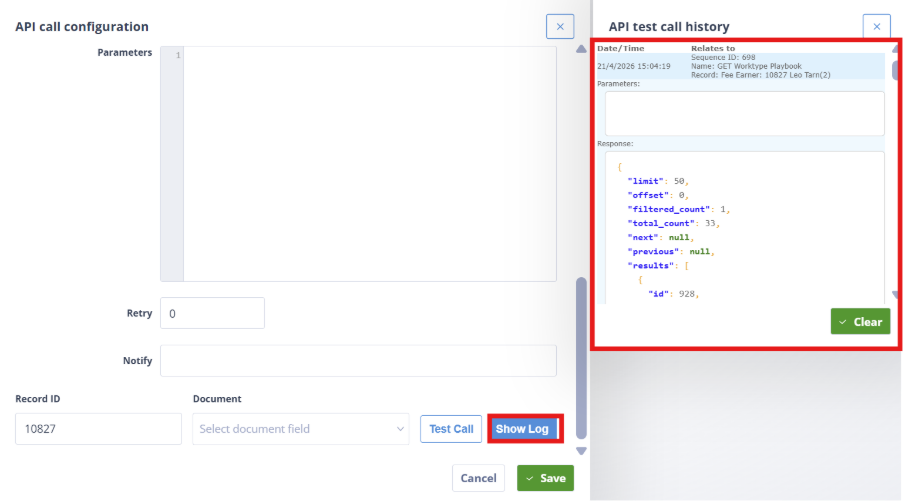
Show Log and API Test Call History
Click Show Log to view the API test call history.
This includes:
- request details
- rendered Parameters
- response data
- error messages
Use Clear if you want to remove old log entries and reduce noise while troubleshooting.
Using the API Call Actor for debugging
The API Call Actor can also be used as a debugging tool inside a Sequence.
For example, you can configure a simple call like this:
- Template: Standard Configuration
- Method: GET
- Authentication: --------
- URL:
{{ client_url }}/api/object-records/{{ record.id }}
This creates an unauthenticated request to the current Record. The request will fail because no authentication is provided, but it can still be useful for debugging.
In this scenario, the Parameters field can be used to:
- test Jinja syntax
- validate how values are being rendered
- check what data is available at a particular point in the Sequence
- help identify why a Sequence may have failed for a given Record
Run a Test Call and then inspect the rendered Parameters output in the test call history.
For example, if the log shows a value such as variables.test as blank, that may indicate that the Sequence has not yet reached the point where the Variable is set, or that it attempted to set it and failed.
INFO
In this type of debugging setup, the error response is expected. The most useful part of the output is usually the rendered Parameters content.
You can also use this approach to test Jinja syntax. If an expression contains an error, the API Test Call response may help surface it. For example, a missing % in a Jinja statement may result in a merge field or template rendering error.
Important behaviour and platform nuances
API Calls must be tested before use
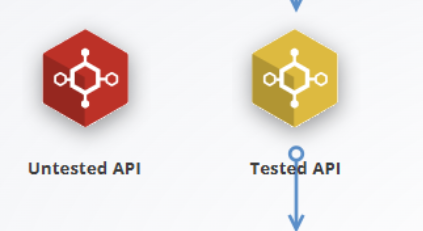
An API Call Actor will appear red if it has not been successfully tested.
A red API Call Actor will not execute when the Sequence runs.
To activate the API Call:
- Run a Test Call
- Confirm a successful response
- Save the configuration
Once the API Call has been successfully tested and saved, it will change from red to yellow.
WARNING
Any change to the API Call configuration requires it to be tested again.
API Calls can trigger Sequences
API Calls that interact with Autologyx Records, for example by creating or updating them, are processed in the same way as user-initiated changes.
This means:
- the action appears in the Activity Log under the credentials of the user associated with the Authentication Object
- it may trigger other Sequences configured with record-based triggers such as Record Updated
WARNING
Using API Calls to update Autologyx Records can introduce unintended side effects, including extra Sequence runs or processing loops.
Where possible, use native Actors such as the Update Record Actor when changing data inside Autologyx itself.
Variables must have values when testing
If your API Call uses Variables or Merge fields, they must have valid values during testing.
In practice, this means:
- you must provide a valid Record ID where appropriate
- the Sequence must have reached the point at which those values are available
If Variables are not yet populated, the API Call may not render correctly.
For more information, see the Local Variable Actor.
Common use cases
API Call Actors are commonly used for:
- integrating with third-party systems
- creating or updating records in external platforms
- sending structured data to external APIs
- retrieving and processing external data
- interacting with parts of your Autologyx system that are not directly available through a Record’s relational structure
Key takeaways
- the API Call Actor is used to send HTTP requests from within a Sequence
- it supports dynamic values through Merge fields and Jinja
- API Calls must be successfully tested before they will execute
- test logs are one of the most useful tools for troubleshooting
- if your API Call depends on Variables or Record data, those values must exist at test time
- API Calls that update Autologyx can trigger further activity and should be designed carefully