
Document templates list
The Document templates list can be found by clicking the Document templates tab in an Object class.
To view this list, and the other tabs in an Object class, you will need one of the following:
- A Super Admin user account
- A Role with permission to edit object classes
- Be a member of a Permission set which allows the User to edit a specific Object class
What you can see at the top of the list
At the top of the list, you will see:
- a counter which shows the number of templates in the list
- the + Create button - used to create a new template. Click here for further information on creating a document template
- pagination function
- column configuration button - allowing you to add additional columns to the list
Default listing
The default listing comprises:
- ID - the unique ALX ID number associated with the document template
- Name - name given to the template by the user who created or last edited it. This column cannot be removed
- Template File Name - name of uploaded Word document in .docx format. This appears as a link so that when clicked the template file is downloaded
- Actions - menu with options to Edit, Download or Delete the template, as well as an option to View usage. This column cannot be reordered or removed
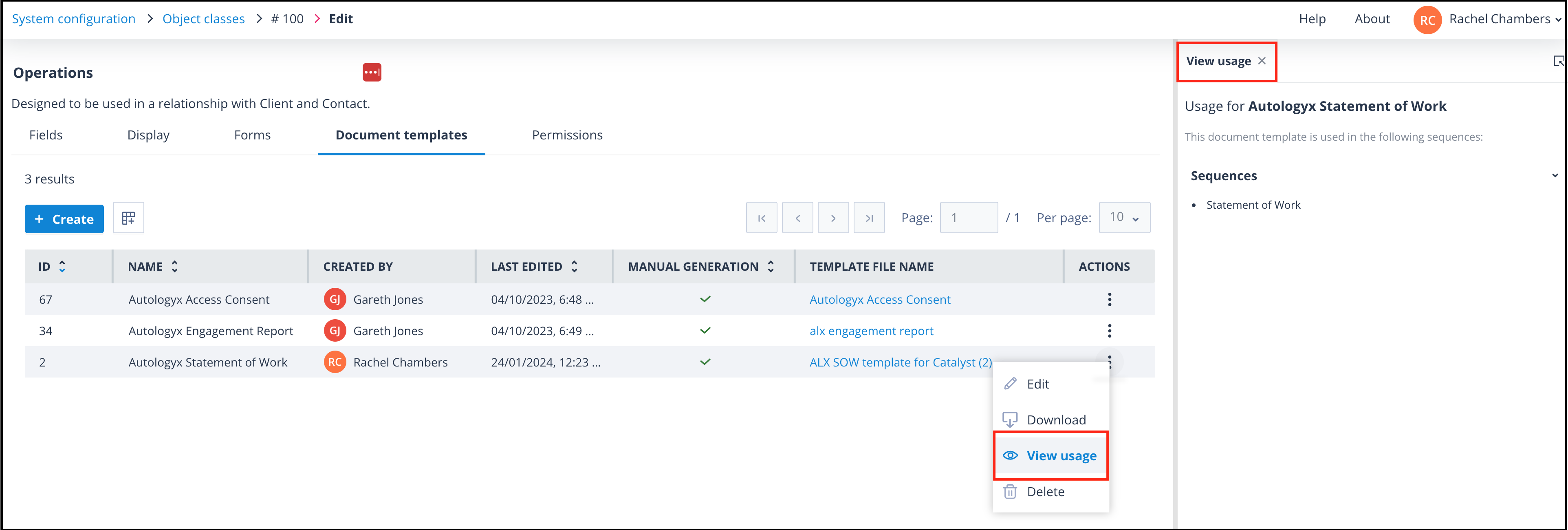
View usage shows in which sequences, if any, the document template is generated via a DocAuto actor. Templates can only be deleted if not used in any sequences.
Additional columns
Other column headers are available via the Column configuration button:
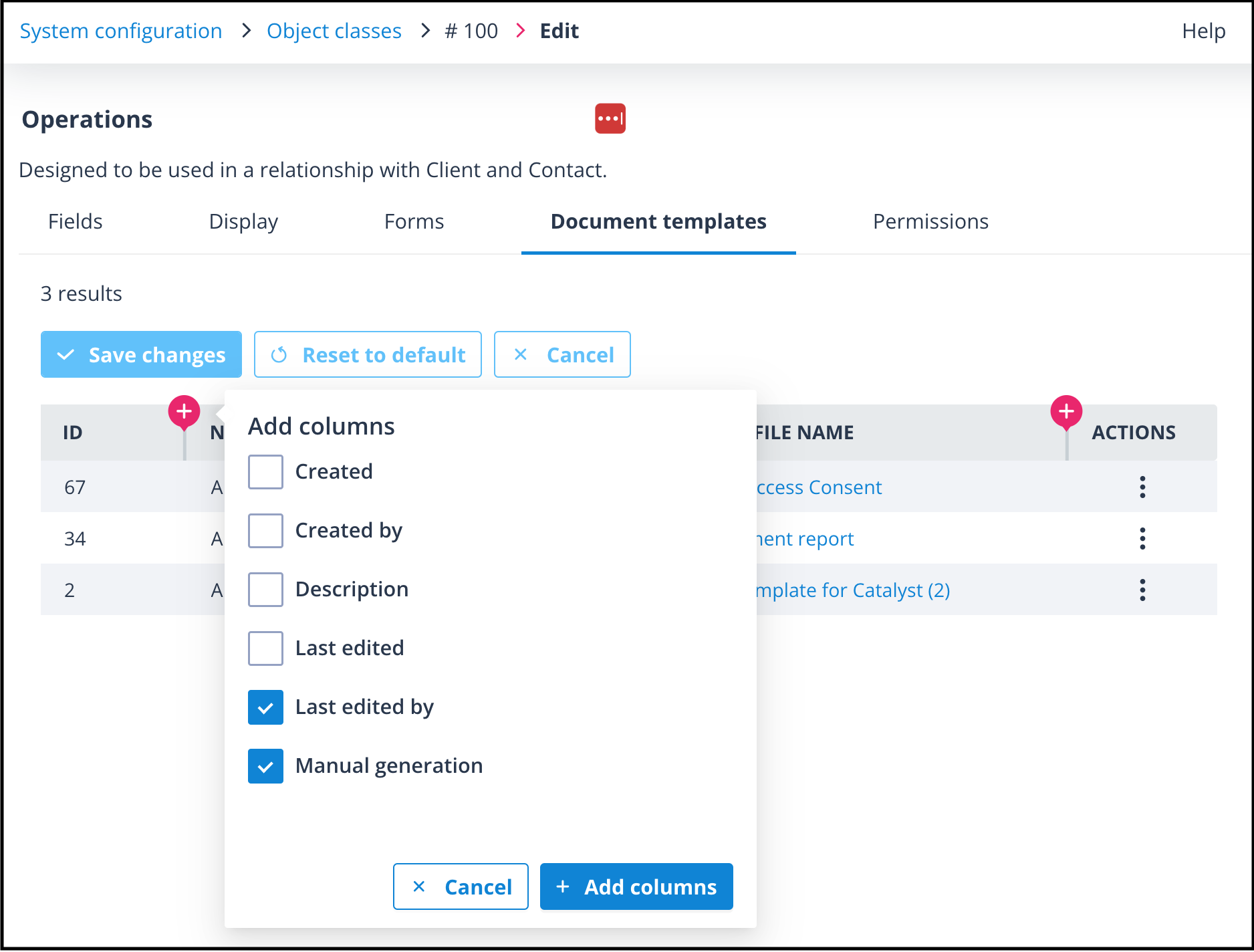
- Created - shows the date/time that the template was created
- Created by - shows the avatar and name of the user who created the template
- Description - this is an optional field when creating or editing the template. It is useful if you have a number of similarly named templates which are used under different circumstances, to help a user tasked with editing a template which they didn't create
- Last edited - shows the date/time that the template was last amended
- Lasted edited by - shows the avatar and name of the user who was last to edit the template
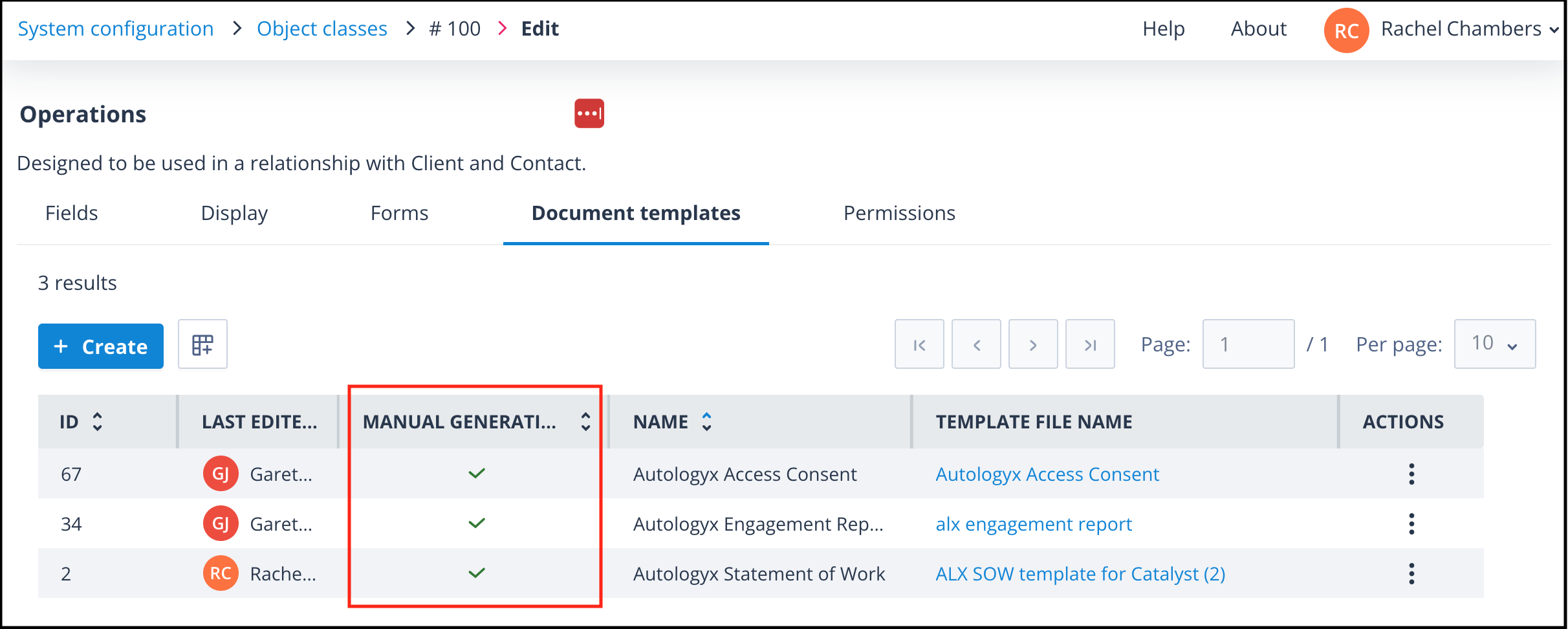
- Manual generation - indicates whether "document manual generation" has been enabled. Click here for more information
Editing from the list
A user can double-click on a row to edit the document template setup. Click here for further information about editing a document template.
Empty state
If no document templates have been created, the list will be empty with a "No Document templates created" message displayed instead.
Useful info
- You can have up to 1000 document templates in any object class.
- This list does not have a filter, but you can sort by ID or Name to find required templates.