
User Group List
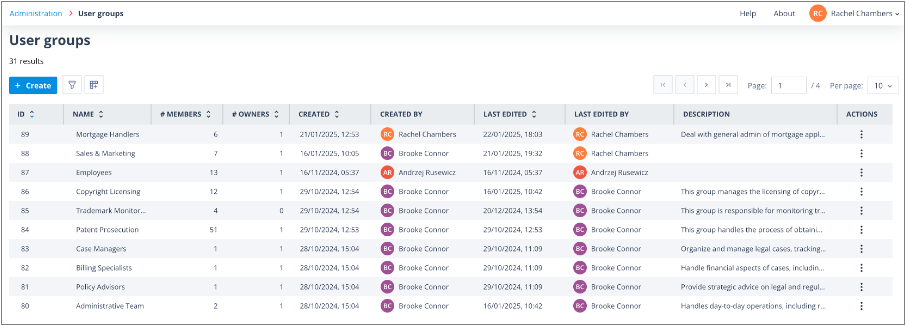
The User Group List displays the User Groups you have permission to view.
From this page, authorised users can:
- open a User Group
- view where a User Group is used
- delete a User Group, where permitted
- create new User Groups, where permitted
- review ownership, membership, and activity information
Default columns
The default User Group List contains the following columns.
ID
The unique ID number assigned to the User Group.
This is useful when several User Groups have similar names.
Name
The name of the User Group.
This field is mandatory when creating a new User Group and must be unique.
Description
An optional description explaining what the User Group is used for.
Actions
The options available in the Actions menu depend on your account type and relationship to the User Group.
Actions available to Super Admin users
If your user account type is Super Admin, you can see all User Groups in the system.
For each User Group, the Actions menu contains:
- Open
- View usage
- Delete
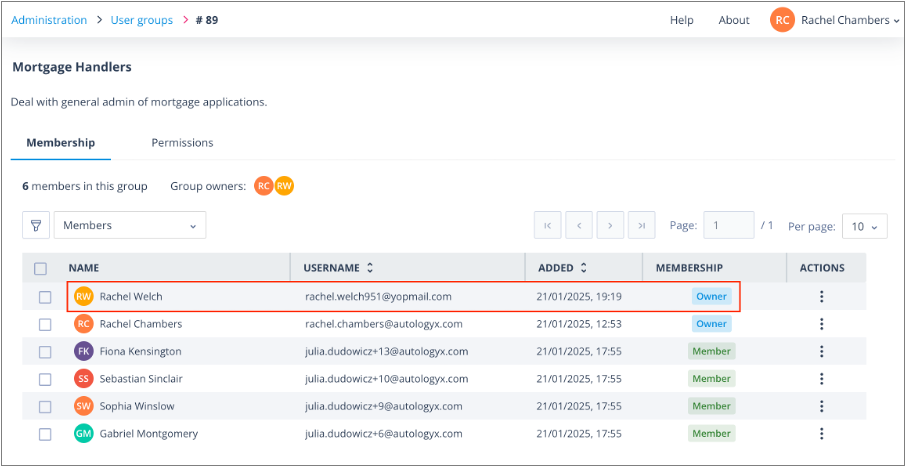
Actions available to User Group Owners
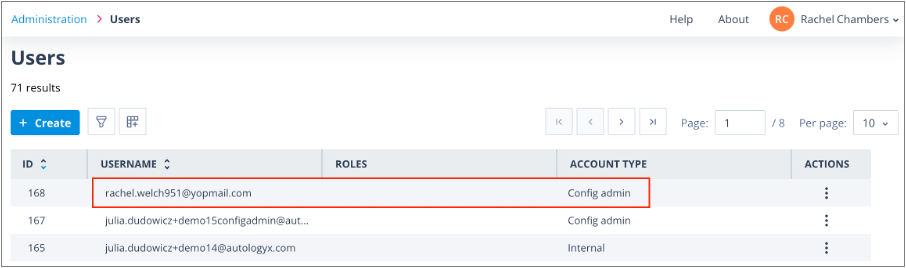
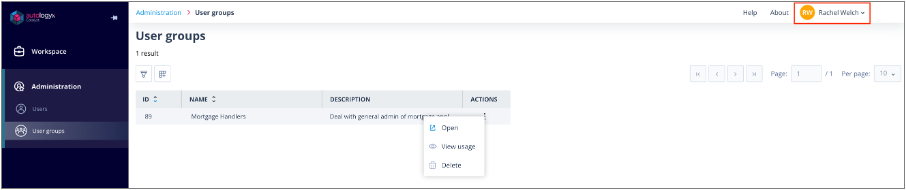
A User Group Owner with a Config Admin account type will have links for User Groups and Users in the main navigation menu.
They will only see User Groups where they are either an Owner or a Member.
For User Groups they own, the Actions menu contains:
- Open
- View usage
- Delete
Actions available to User Group Members
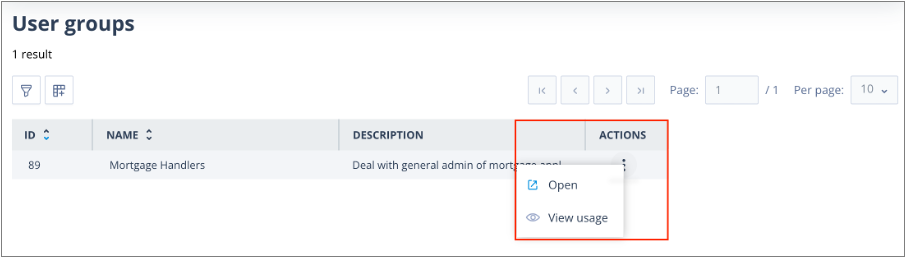
A user who is a Member of a User Group, but not an Owner, has more limited options.
For these User Groups, the Actions menu contains:
- Open
- View usage
Additional columns
The Column configuration control allows you to add the following columns to the User Group List.
| Column | Description |
|---|---|
| # Members | Displays the total number of Members in the User Group, including Owners. |
| # Owners | Displays the number of Members who are Owners. |
| Created | Shows the date and time the User Group was created. |
| Created by | Shows the first and last name of the user who created the User Group. |
| Last edited | Shows the date and time the User Group was last edited. |
| Last edited by | Shows the first and last name of the user who last edited the User Group. |
Related articles
- Editing a User Group
- User Group Permissions
- Editing User Group Permissions
- List Pages
- List Page Filter Editor
Things to remember
- Super Admin users can see all User Groups in the system.
- Config Admin users see only User Groups where they are an Owner or Member.
- Only Owners and Super Admin users can delete User Groups.
- The available Actions menu options depend on your permissions.
- Additional columns can be added using Column configuration.
- User Group names must be unique.